Plugable USB-C Triple HDMI Docking vs Plugable Thunderbolt 4 Dual HDMI: Spec Comparison
As an Amazon Associate we earn from qualifying purchases. Links on this page are affiliate links.
This plugable USB c triple display vs thunderbolt 4 dock m4 m5 comparison helps you choose the right expansion hub. Both docks offer 100W power delivery and HDMI video outputs for your workstation. The main difference lies in their connection technology and display limits. One uses USB-C with DisplayLink drivers for three screens. The other relies on Thunderbolt 4 for native dual 4K support on Mac systems. You need to match the interface to your laptop's capabilities.
Key differences
| Aspect | Plugable USB-C Triple HDMI Docking Station | Plugable Thunderbolt 4 Dual HDMI Dock |
|---|---|---|
| Host Interface | USB-C, USB4, Thunderbolt | Thunderbolt 4 |
| Display Support | Triple (1x 4K @ 30Hz, 2x 1080p @ 60Hz) | Dual (2x 4K @ 60Hz) |
| Video Technology | DisplayLink + USB-C Alt Mode | Native Thunderbolt 4 |
| Port Count | 12 | 13 |
| Weight | 11.7 ounces | 2.85 pounds |
Which one should you choose?
Choose Plugable USB-C Triple HDMI Docking Station if
- You need three monitors simultaneously on Windows or Linux systems.
- You use base M1 or M2 MacBooks that only support one external display natively.
- You prefer a lightweight dock that is easy to carry.
Choose Plugable Thunderbolt 4 Dual HDMI Dock if
- You use M3 Pro/Max, M4, or M5 MacBooks and want driverless setup.
- You require 60Hz refresh rates on both 4K displays for video work.
- You want a sturdy aluminum chassis with Thunderbolt 4 speed.
Verdict: Choose the USB-C Triple HDMI dock if you need three screens or use Windows, Linux, or base MacBooks. Pick the Thunderbolt 4 dock if you have a Pro or Max M-series Mac and want native 4K @ 60Hz performance without driver installation. Both provide reliable 100W charging for your laptop.
Specs and Display Support Comparison
Display Support
The Plugable USB-C Triple HDMI Docking Station (Product A) supports three extended displays. It uses native USB-C Alt Mode for one 4K monitor at 30Hz. The other two screens run at 1080p and 60Hz via DisplayLink technology. This setup helps bypass single-display limits on Apple Silicon Macs. The Plugable Thunderbolt 4 Dual HDMI Dock (Product B) supports only two monitors. It drives two 4K displays at 60Hz on compatible M4 and M5 MacBooks. This option is better if you need high refresh rates on two screens. However, Product A offers more total screen real estate for multitasking.
Connectivity
Product B uses a Thunderbolt 4 interface with a maximum data speed of 40Gbps. This provides a direct, high-bandwidth connection for compatible systems. Product A relies on USB-C, USB4, or Thunderbolt host interfaces. It does not list a specific maximum data speed in its published specs. For data transfer, the Thunderbolt 4 connection in Product B generally offers more consistent bandwidth. Product A uses DisplayLink for its third screen, which adds latency and CPU usage. If you prioritize raw data throughput and low latency, the Thunderbolt 4 link in Product B is superior.
Port Count
Product B offers 13 ports in total. This includes a downstream Thunderbolt 4 port, USB-C, four USB-A ports, SD and microSD card readers, Gigabit Ethernet, and audio jacks. Product A provides 12 ports. It features six USB 3.0 ports, HDMI outputs, Ethernet, and audio. Both docks include Gigabit Ethernet and 100W power delivery. Product B has a slight advantage with one additional port and dedicated card readers. Product A offers more USB-A ports for peripherals. The difference is minimal, but Product B provides more versatile I/O options.
Resolution
Product B delivers 4K resolution at 60Hz on both connected displays. This is ideal for video editing and design work where smooth motion matters. Product A supports 4K resolution at only 30Hz on its primary display. The secondary displays are limited to 1080p at 60Hz. If you need crisp, high-refresh-rate visuals on multiple screens, Product B is the better choice. The 30Hz limit on Product A’s main 4K output may feel less responsive for mouse movement and scrolling. Product B wins here for visual performance.
Compatibility
Product A works with Windows, macOS, and ChromeOS. It requires a driver installation for macOS versions 11 and higher. It is not compatible with Linux systems. Product B is designed primarily for M1 through M5 MacBooks. It also supports Windows systems with Thunderbolt 4 or USB4. Product B is driverless on Macs, which simplifies setup. Product A requires driver management on Macs. For Windows users, both docks work well. Product B offers a smoother experience for Mac users due to its plug-and-play nature.
Choose your Plugable dock based on needs
Users needing three screens on mixed OS
This dock supports three displays. One runs at 4K 30Hz via Alt Mode. Two run at 1080p 60Hz via DisplayLink. It works with Windows, macOS, and ChromeOS. You get 12 ports including Ethernet. This setup maximizes screen real estate for data analysis or presentations across different operating systems.
Mac users wanting driver-free 4K dual monitors
This Thunderbolt 4 dock supports dual 4K 60Hz HDMI displays. It requires no drivers on M4, M5, M3, and M2 Macs. You get 13 ports with SD card slots. The aluminum build suits creative workflows. It delivers high bandwidth for video editors and designers seeking a clean, plug-and-play Mac setup.
Windows professionals preferring native USB-C connectivity
This model connects via USB-C, USB4, or Thunderbolt. It offers native video output alongside DisplayLink expansion. You receive 12 ports for peripherals and networking. It supports Windows and ChromeOS environments. This flexibility allows you to connect to various laptop types while maintaining reliable gigabit Ethernet and multiple display options.
The products compared

Plugable USB-C Triple HDMI Docking Station
Best for: MacBook users needing triple displays
- Host Interface
- USB-C
- Display Support
- Triple
- Max Resolution
- 4K @ 30Hz
- Power Delivery
- 100W
- Port Count
- 12
- Video Ports
- HDMI
View on Amazon: Plugable USB-C Triple HDMI Docking Station Affiliate link
This Plugable dock supports three HDMI displays, combining one 4K output at 30Hz with two 1080p outputs at 60Hz. It uses DisplayLink technology to bypass native display limits on Apple Silicon Macs. The unit delivers 100W of power delivery to your host laptop. You get a Gigabit Ethernet port and six USB 3.0 ports for peripherals. It fits USB-C, USB4, and Thunderbolt hosts on Windows, macOS, and ChromeOS.
Pros
- Supports up to three extended HDMI displays
- 100W USB-C Power Delivery for host charging
- Gigabit Ethernet port for wired networking
- Six USB 3.0 ports for peripherals
- Compatible with Apple M4 and M5 MacBooks
Cons
- Primary display is limited to 4K at 30Hz
- Requires DisplayLink driver installation on macOS
- Not compatible with Linux operating systems
Good fit if
- You need three monitors on a MacBook Air or Pro
- You require a wired Gigabit Ethernet connection
- You use Windows or ChromeOS laptops with USB-C
Skip if
- You need 4K resolution at 60Hz refresh rates
- You use a Linux-based computer
- You prefer a plug-and-play setup without drivers
Verdict: Plugable UD-3900PDZ USB-C Triple Display Dock enables three monitors on laptops that normally support only one, making it ideal for hybrid workspaces needing extra screen real estate.
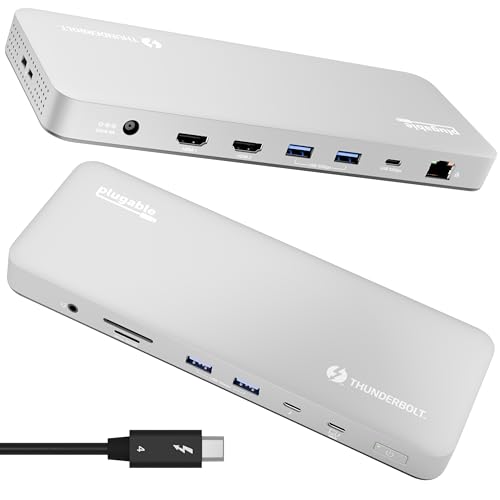
Plugable Thunderbolt 4 Dual HDMI Dock
Best for: Dual 4K setups on M4/M5 MacBooks
- Host Interface
- Thunderbolt 4, USB4
- Display Support
- Dual
- Max Resolution
- Single 6K, Dual 4K 60Hz
- Power Delivery
- 100W
- Port Count
- 13
- Video Ports
- HDMI
View on Amazon: Plugable Thunderbolt 4 Dual HDMI Dock Affiliate link
This is a 13-port Thunderbolt 4 dock designed for M4 and M5 MacBooks. It supports dual 4K displays at 60Hz and provides 100W of power delivery. The aluminum chassis weighs 2.85 pounds. You get four USB-A ports, an SD card reader, and Ethernet. It works with Windows systems using Thunderbolt 4 or USB4. This setup suits users who need high bandwidth and stable video output for professional work.
Pros
- Dual 4K 60Hz HDMI output
- 100W Power Delivery charging
- 13 total connectivity ports
- 40Gbps Thunderbolt 4 interface
- Driverless plug-and-play setup
Cons
- Base M1 and M2 MacBooks support only one external display
- M3 Macs require clamshell mode for dual displays
- Heavier build at 2.85 pounds
Good fit if
- You use an M4 or M5 MacBook Air or Pro
- You need dual 4K monitors for video editing
- You want a single cable for data and power
Skip if
- You own a base M1 or M2 MacBook
- You require three simultaneous external displays
- You need a lightweight portable solution
Verdict: Plugable TBT-UDM Thunderbolt 4 Dock delivers reliable dual 4K performance for M4 and M5 MacBooks. It is the right choice for professionals who prioritize bandwidth and port density over compact size.
Specifications side by side
| Spec | Plugable USB-C Triple HDMI Docking Station | Plugable Thunderbolt 4 Dual HDMI Dock |
|---|---|---|
| Host Interface | USB-C | Thunderbolt 4, USB4 |
| Display Support | Triple | Dual |
| Max Resolution | 4K @ 30Hz | Single 6K, Dual 4K 60Hz |
| Power Delivery | 100W | 100W |
| Port Count | 12 | 13 |
| Video Ports | HDMI | HDMI |
| Max Data Speed | 5Gbps | 40Gbps |
| Ethernet Speed | Gigabit Ethernet | not stated |
| Resolution | 1080p FHD | 4K UHD |
| Connectivity | USB-C, HDMI | HDMI, Ethernet, Thunderbolt 4 |
| Refresh Rate | 60Hz | not stated |
| Slot Count | not stated | 1 Slot |
| Dimensions | 7.87 × 3.54 × 1.18 inches | 3.35 × 8.86 × 0.91 inches |
| Weight | 11.7 ounces | 2.85 pounds |
| Size | 7.9 x 3.3 x 1.2 inches | not stated |
| Color | Black | Space Grey |
| Model | UD-3900PDZ | TBT-UDM |
Frequently asked questions
Which Plugable dock works best for M4 and M5 MacBooks?
The Plugable Thunderbolt 4 Dual HDMI Dock is the better choice for M4 and M5 MacBooks. It delivers reliable dual 4K performance specifically optimized for these newer chips. The USB-C Triple HDMI Dock supports three displays but relies on DisplayLink technology, which may not offer the same native bandwidth efficiency as Thunderbolt 4 on Apple Silicon.
Can the Plugable USB-C dock support three 4K monitors at 60Hz?
No, it cannot. The Plugable USB-C Triple HDMI Docking Station supports one 4K monitor at 30Hz via native USB-C Alt Mode. The other two displays run at 1080p and 60Hz using DisplayLink technology. If you need three 4K screens at high refresh rates, this dock does not meet that specific requirement.
What is the weight difference between the two docks?
The Thunderbolt 4 dock is significantly heavier. It weighs 2.85 pounds, while the USB-C Triple HDMI Dock weighs only 11.7 ounces. The Thunderbolt 4 dock is also larger in overall dimensions. You should consider this weight if you plan to move the setup frequently between desks.
Do both docks provide 100W power delivery for laptops?
Yes, both docks provide 100W power delivery. This allows you to charge your laptop while connected to multiple monitors and peripherals. You do not need a separate charger for your computer when using either the USB-C or Thunderbolt 4 model from Plugable.
Is the Thunderbolt 4 dock compatible with Windows PCs?
The provided data does not specify Windows compatibility for the Thunderbolt 4 dock. It is described as ideal for M4 and M5 MacBooks. The USB-C dock explicitly supports Windows, macOS, and ChromeOS. You should verify Windows support for the Thunderbolt model on the manufacturer's website before purchasing.
Which dock is more compact for a small desk?
The USB-C Triple HDMI Dock is more compact. It measures 7.9 by 3.3 by 1.2 inches. The Thunderbolt 4 dock is wider at 8.86 inches but thinner at 0.91 inches. The USB-C model is also much lighter. If desk space is limited, the USB-C dock takes up less physical volume.