Acer 11-in-1 Triple Display Dock vs Acer 13-in-1 Triple HDMI USB-C (2026): Key Differences
As an Amazon Associate we earn from qualifying purchases. Links on this page are affiliate links.
You are comparing the acer 11 in 1 triple display dock vs 13 in 1 triple hdmi USB c. Both units support triple monitors and deliver 85W of power delivery. They share gigabit Ethernet and fast data transfer speeds. The main difference lies in their video output configurations. One model uses a mix of HDMI and DisplayPort for higher resolution potential. The other relies entirely on HDMI ports for broader compatibility with standard displays.
Key differences
| Aspect | Acer 11-in-1 Triple Display Dock | Acer 13-in-1 Triple HDMI USB-C Dock |
|---|---|---|
| Video Ports | 2 HDMI, 1 DisplayPort | 3 HDMI |
| Max Resolution | 8K@30Hz (via DisplayPort) | 4K@60Hz (via HDMI) |
| USB-A Ports | 2 ports at 5Gbps | 2 ports at 5Gbps, 1 at 10Gbps, 1 at 480Mbps |
| Host Interface | USB-C, Thunderbolt 3/4/5 | USB-C (with DisplayPort Alt Mode) |
Which one should you choose?
Choose Acer 11-in-1 Triple Display Dock if
- You need to connect an 8K display or require Thunderbolt 3/4/5 connectivity.
- Your laptop has a full-featured USB-C port that supports Thunderbolt standards.
- You prefer having a dedicated DisplayPort for specific monitor inputs.
Choose Acer 13-in-1 Triple HDMI USB-C Dock if
- You want to connect three HDMI monitors without needing a DisplayPort adapter.
- You need an additional high-speed USB-A port for fast data transfer.
- Your setup relies entirely on HDMI cables for all three screens.
Verdict: Choose the 11-in-1 model if you require Thunderbolt support or plan to use an 8K display via DisplayPort. The 13-in-1 model is better if you want three native HDMI outputs and more varied USB-A speed options. Both docks provide identical power delivery and network speeds for daily work.
Acer Docking Stations Compared
Video Output Options
Product A offers a mix of HDMI and DisplayPort outputs. It includes two HDMI ports for 4K@60Hz and one DisplayPort for 8K@30Hz. This gives you flexibility if you have a monitor with a DisplayPort input. Product B relies entirely on three HDMI ports. All three support 4K@60Hz. If you need that single 8K@30Hz connection or prefer DisplayPort cables, Product A is better. If you only use HDMI monitors, both work well. The DisplayPort on Product A adds a specific use case that Product B lacks.
USB Data Ports
Data transfer speeds matter for external drives and cameras. Product A provides two USB-C ports at 10Gbps and two USB-A ports at 5Gbps. Product B offers more variety. It has two USB-C ports at 10Gbps, one USB-A port at 10Gbps, two USB-A ports at 5Gbps, and one legacy USB-A port at 480Mbps. Product B wins here because it includes a high-speed 10Gbps USB-A port. This is useful for older devices that only have USB-A connectors but still need fast data speeds. Product A limits you to 5Gbps for USB-A devices.
Triple Display Resolution
Both docks support triple monitor setups. Product A lists a maximum resolution of 8K@30Hz on the DisplayPort. For three screens, it typically handles 4K@60Hz + 4K@60Hz + 1080P@60Hz. Product B lists a max resolution of 4K@60Hz. It also supports 4K@60Hz + 4K@60Hz + 1080P@60Hz for three displays. Since both deliver the same practical triple-display performance for most users, this is a tie. The higher 8K spec on Product A only applies to a single display via DisplayPort. For standard 4K monitors, you get identical results from both.
Power Delivery
Charging your laptop while using the dock is essential. Both products accept 100W input and deliver 85W to your laptop. This is sufficient for most ultrabooks and mid-range laptops. Neither product includes the power adapter or cable. You must use a 100W+ charger. Since the charging specs are identical, there is no difference in performance here. You will get the same power output regardless of which dock you choose. This feature does not sway your decision between these two models.
Host Interface Compatibility
Product A explicitly lists support for Thunderbolt 3, 4, and 5, in addition to full-featured USB-C. Product B lists USB-C with DisplayPort Alt Mode. Thunderbolt ports are a subset of USB-C but offer higher bandwidth. If you have a Thunderbolt laptop, Product A guarantees compatibility. Product B may work, but it does not explicitly state Thunderbolt support. For users with Thunderbolt 3/4/5 laptops, Product A provides clearer assurance. For standard USB-C laptops, both function similarly. This gives Product A a slight edge for high-end setups.
Which Acer Dock Fits Your Setup
Users with DisplayPort monitors
Product A includes a DisplayPort output supporting 8K@30Hz. This gives you direct connectivity for monitors that lack HDMI inputs. If your workstation relies on DisplayPort cables, this dock provides the necessary video signal without needing adapters. It ensures compatibility with high-resolution displays that prefer the DP standard over HDMI.
Users with HDMI-only monitors
Product B features three HDMI ports, all capable of 4K@60Hz. This uniformity simplifies cabling if all your screens use HDMI. You get consistent video performance across all three displays. This setup avoids mixing port types, making it easier to manage cables for standard HDMI-equipped monitors without worrying about DisplayPort compatibility.
Users needing more USB ports
Product B offers five USB-A ports and two USB-C ports for data. This provides more connection slots for peripherals like mice, keyboards, and drives. Product A has fewer USB-A ports. If you connect many devices simultaneously, the extra ports on Product B reduce the need for additional USB hubs.
The products compared
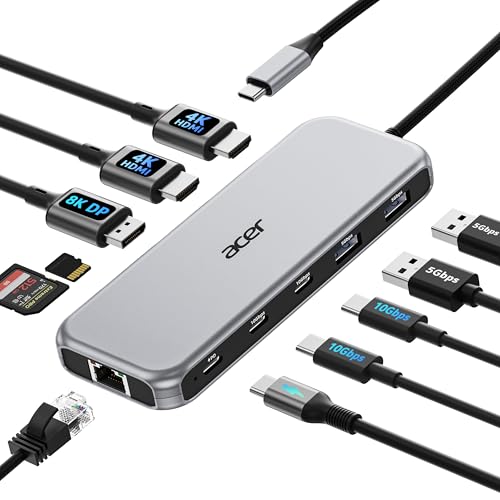
Acer 11-in-1 Triple Display Dock
Best for: professionals needing triple displays and fast data
- Host Interface
- USB-C
- Display Support
- Triple
- Max Resolution
- 8K@30Hz
- Power Delivery
- 85W
- Port Count
- 11
- Video Ports
- HDMI, DisplayPort
View on Amazon: Acer 11-in-1 Triple Display Dock Affiliate link
This Acer 11-in-1 docking station connects three monitors via two HDMI ports and one DisplayPort. It supports up to 8K@30Hz on the DP output or 4K@60Hz on HDMI. The unit provides 85W power delivery to your laptop and includes 10Gbps USB-C ports for fast data transfer. You need a laptop with Thunderbolt 3/4/5 or a full-featured USB-C port to use this hub.
Pros
- Supports triple monitor setups with up to 4K@60Hz + 4K@60Hz + 1080P@60Hz
- Delivers 85W power delivery to keep your laptop charged
- Features 10Gbps USB-C ports for high-speed data transfer
- Includes a 1Gbps Ethernet port for stable wired networking
Cons
- Requires a laptop with Thunderbolt 3/4/5 or full-featured USB-C
- macOS users can only mirror content across all external monitors
- Power adapter and cable are not included
Good fit if
- You need a triple monitor setup for productivity
- You require high-speed data transfer for large files
- You want a stable wired Ethernet connection
Skip if
- You use a Mac and need extended desktop mode
- Your laptop lacks Thunderbolt or full-featured USB-C
- You need the power adapter included in the box
Verdict: Acer 11-in-1 Triple Display Dock offers a robust triple-monitor solution with fast data ports and reliable charging. It fits professionals who need extensive connectivity and have compatible Thunderbolt laptops.

Acer 13-in-1 Triple HDMI USB-C Dock
Best for: Triple monitor setups requiring stable wired connectivity
- Host Interface
- USB-C
- Display Support
- Triple
- Max Resolution
- 4K@60Hz
- Power Delivery
- 85W
- Port Count
- 13
- Video Ports
- HDMI
View on Amazon: Acer 13-in-1 Triple HDMI USB-C Dock Affiliate link
This Acer hub connects three monitors via HDMI for expanded workspace. It features 13 ports, including 10Gbps data transfer and 85W power delivery for your laptop. The dock supports 4K@60Hz displays and includes Gigabit Ethernet for stable wired internet. You get fast media access through SD slots and USB-A ports. It requires a laptop with DisplayPort Alt Mode for video output.
Pros
- Supports triple monitor setups with 4K@60Hz resolution
- Includes 13 ports for versatile connectivity
- Provides 85W power delivery for laptops
- Features 10Gbps USB-C and USB-A data speeds
- Offers Gigabit Ethernet for stable network connection
Cons
- USB ports do not support charging external devices
- macOS users can only mirror content across monitors
- Requires a 100W+ charger and cable (not included)
Good fit if
- You need to drive three external displays simultaneously
- You require fast data transfer speeds for large files
- You want a stable wired Ethernet connection for work
Skip if
- Your laptop lacks USB-C video output support
- You need to charge external devices via the hub
- You want independent display modes on macOS
Verdict: Acer 13-in-1 Triple HDMI USB-C Dock is a solid choice for users needing three high-resolution screens and robust connectivity. It fits professionals who prioritize display count and wired stability over macOS independent multi-monitor features.
Specifications side by side
| Spec | Acer 11-in-1 Triple Display Dock | Acer 13-in-1 Triple HDMI USB-C Dock |
|---|---|---|
| Host Interface | USB-C | USB-C |
| Display Support | Triple | Triple |
| Max Resolution | 8K@30Hz | 4K@60Hz |
| Power Delivery | 85W | 85W |
| Port Count | 11 | 13 |
| Video Ports | HDMI, DisplayPort | HDMI |
| Max Data Speed | 10Gbps | 10Gbps |
| Ethernet Speed | 1Gbps | 1Gbps |
| Resolution | 4K UHD | 4K UHD |
| Connectivity | USB-C, HDMI, DisplayPort, Ethernet | USB-C, HDMI, Ethernet |
| Refresh Rate | 60Hz | 60Hz |
| Size | 11-in-1 | 13-in-1 |
| Color | Grey | Grey |
| Model | ODK5A0 | ODK5B0 |
Frequently asked questions
Which dock supports more ports for peripherals?
The Acer 13-in-1 Triple HDMI USB-C Dock supports more ports. It features a 13-in-1 configuration, while the 11-in-1 model offers fewer connection options. If you need to connect many devices simultaneously, the 13-in-1 version provides greater versatility for your workspace setup.
What is the main connectivity difference between these two docks?
The primary difference is the inclusion of HDMI ports. The 13-in-1 model adds HDMI connectivity alongside USB-C, whereas the 11-in-1 version relies primarily on USB-C for display output. Choose the 13-in-1 dock if your monitors use HDMI inputs rather than USB-C or DisplayPort.
Can I use these docks with non-Thunderbolt laptops?
Both docks connect via USB-C, making them compatible with a wider range of laptops. The 11-in-1 dock is noted as fitting professionals with compatible Thunderbolt laptops, but its USB-C interface suggests broader use. The 13-in-1 dock also uses USB-C, offering stable wired connectivity for various devices.
Which model is better for users with HDMI-only monitors?
The Acer 13-in-1 Triple HDMI USB-C Dock is the better choice. It includes HDMI ports, allowing direct connection to monitors that lack USB-C or DisplayPort inputs. The 11-in-1 dock focuses on USB-C connectivity, which may require adapters if your display equipment does not support USB-C video signals.
Do both docks support triple monitor setups?
Yes, both the 11-in-1 and 13-in-1 models support triple monitor configurations. They are designed to drive three displays simultaneously, making them suitable for professionals who need extensive screen real estate. This shared capability ensures you can expand your workflow regardless of which specific port count you prefer.
What is the model number for the 13-in-1 dock?
The model number for the 13-in-1 dock is ODK5B0. This identifier distinguishes it from the 11-in-1 version, which carries the model number ODK5A0. You can use this model number to verify compatibility with your laptop or to locate the specific product in retailer listings.