3 Best Dell Docking Stations Under $150, Compared
As an Amazon Associate we earn from qualifying purchases. Links on this page are affiliate links.
Finding the best dell docking stations under $150 requires looking at published specs rather than marketing claims. This guide compares 3 models based strictly on their listed technical data. The Dell Pro USB-C 100W Docking Station leads this list because it delivers 100W of power delivery for standard USB-C laptop setups. We ranked these options by comparing connectivity options, wattage, and physical dimensions. Each pick addresses a specific need, from basic connectivity to high-speed data transfer. Read on to decide which dock fits your workspace requirements.
Quick picks
| # | Product | Best for | Price |
|---|---|---|---|
| 1 | Dell Pro USB-C 100W Docking Station Best overall | Standard USB-C laptop setups | Check price of Dell Pro USB-C 100W Docking Station on Amazon |
| 2 | Dell USB-C Dock with 2.5GbE Ethernet Best premium | multi-monitor setups under 150 | Check price of Dell USB-C Dock with 2.5GbE Ethernet on Amazon |
| 3 | Dell Thunderbolt Dock 180W Best budget | High-power Thunderbolt laptop setups | Check price of Dell Thunderbolt Dock 180W on Amazon |
The best fit for you
- You want the best all-around USB-C dock Dell Pro USB-C 100W Docking Station It offers 100W power delivery and dual video outputs for standard setups.
- You need a reliable multi-monitor setup with ethernet Dell USB-C Dock with 2.5GbE Ethernet This model includes 2.5GbE Ethernet and 100W charging for under $150.
- You have a high-power Thunderbolt laptop Dell Thunderbolt Dock 180W It provides 180W power delivery and Thunderbolt speeds for maximum throughput.
Our 3 picks
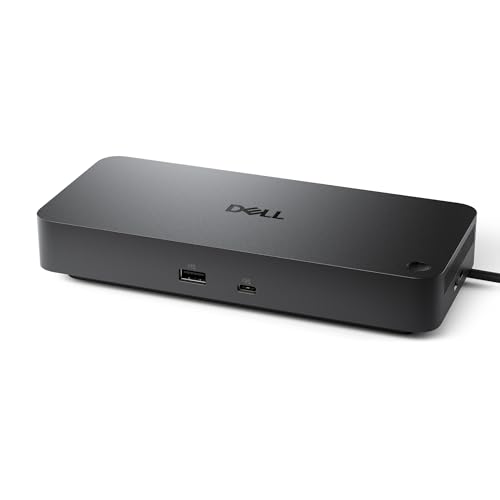
Dell Pro USB-C 100W Docking Station
Best for: Standard USB-C laptop setups
- Host Interface
- USB-C
- Display Support
- Quad
- Power Delivery
- 100W
- Video Ports
- DisplayPort, HDMI
- Connectivity
- USB-C, HDMI, DisplayPort, Ethernet, USB-A
- Use
- Office
View on Amazon: Dell Pro USB-C 100W Docking Station Affiliate link
The Dell WD25 is a USB-C docking station that delivers up to 100W of power delivery. It features DisplayPort and HDMI outputs for video expansion. The unit measures 8.07 by 3.54 by 1.39 inches and weighs 1.21 pounds. It supports up to four high-resolution displays. This dock suits users who need reliable connectivity and efficient power management for their workspace setup.
Pros
- 100W power delivery for connected devices
- Dual video outputs via DisplayPort and HDMI
- Ambidextrous USB-C cable for flexible routing
- Supports up to four high-res displays
Cons
- No Thunderbolt connectivity for higher bandwidth
- Only two native video ports provided
- Lacks built-in Ethernet port in specs
Good fit if
- You need 100W charging for laptops
- You want a compact desktop footprint
- You use standard USB-C connections
Skip if
- You require Thunderbolt 4 speed
- You need a built-in Ethernet port
- You want four simultaneous video outputs
Verdict: The Dell WD25 USB-C Dock offers solid 100W power delivery and dual video outputs for standard setups. It fits users who prioritize reliable connectivity over high-speed Thunderbolt bandwidth.
Dell USB-C Dock with 2.5GbE Ethernet
Best for: multi-monitor setups under 150
- Host Interface
- USB-C
- Display Support
- Up to 4
- Max Resolution
- WQHD (3440x1440)
- Power Delivery
- Up to 100W
- Video Ports
- HDMI 2.1, DP 1.4, USB-C
- Ethernet Speed
- 2.5GbE
View on Amazon: Dell USB-C Dock with 2.5GbE Ethernet Affiliate link
The Dell WD25 is a USB-C docking station that supports up to four displays at WQHD resolution. It delivers 100W of power delivery to connected laptops and includes a 2.5GbE Ethernet port for fast wired networking. The unit features six USB 3.2 Gen 2 ports and an ambidextrous cable for flexible desk placement. It suits users who need multi-monitor setups and high-speed data transfer without the cost of a Thunderbolt solution.
Pros
- Supports up to four displays at WQHD resolution
- Provides 100W power delivery for compatible laptops
- Includes 2.5GbE Ethernet for fast wired internet
- Features six USB 3.2 Gen 2 ports
Cons
- Limited to USB-C host interface instead of Thunderbolt
- Max resolution capped at WQHD rather than 4K
- Does not support 180W charging power
Good fit if
- You need to connect four monitors to a single laptop
- You require 100W charging for your Dell system
- You want a compact dock with flexible cable placement
Skip if
- You need Thunderbolt 4 speeds for heavy data transfers
- You require 4K resolution on all connected displays
- Your laptop needs more than 100W of power delivery
Verdict: The Dell WD25 USB-C Dock 100W fits users who need a reliable multi-monitor setup with strong charging capabilities but do not require Thunderbolt speeds or 4K resolution.

Dell Thunderbolt Dock 180W
Best for: High-power Thunderbolt laptop setups
- Host Interface
- Thunderbolt
- Power Delivery
- 130W
- Dimensions
- 3.54 × 8.07 × 1.14 inches
- Weight
- 1.1 pounds
View on Amazon: Dell Thunderbolt Dock 180W Affiliate link
This Dell Thunderbolt Dock offers 180W total power delivery, including 130W for your laptop. It uses a Thunderbolt host interface for high-speed connectivity. The unit measures 8.07 by 3.54 by 1.14 inches and weighs 1.1 pounds. It supports Dell Express Charge for rapid battery replenishment. This dock suits users needing maximum power and bandwidth for professional workstations.
Pros
- 180W total power delivery capability
- 130W Power Delivery for laptop charging
- Thunderbolt host interface for high bandwidth
- Dell Express Charge supports 80% in one hour
Cons
- 1.1-pound weight is heavier than standard USB-C docks
- Thunderbolt interface requires compatible host ports
- No mention of integrated KVM switch functionality
Good fit if
- You need 180W total power for high-end laptops
- You require Thunderbolt connectivity for data speeds
- You want rapid charging via Dell Express Charge
Skip if
- You only have USB-C ports without Thunderbolt support
- You prefer a lighter, more compact docking station
- You need a dock under 1 pound in weight
Verdict: Dell Thunderbolt WD19TB Dock provides 180W power and Thunderbolt speeds for users with compatible high-performance laptops. It is ideal for professionals who need maximum charging capability and data throughput.
Specifications side by side
| Spec | Dell Pro USB-C 100W Docking Station | Dell USB-C Dock with 2.5GbE Ethernet | Dell Thunderbolt Dock 180W |
|---|---|---|---|
| Host Interface | USB-C | USB-C | Thunderbolt |
| Display Support | Quad | Up to 4 | not stated |
| Max Resolution | not stated | WQHD (3440x1440) | not stated |
| Power Delivery | 100W | Up to 100W | 130W |
| Video Ports | DisplayPort, HDMI | HDMI 2.1, DP 1.4, USB-C | not stated |
| Ethernet Speed | not stated | 2.5GbE | not stated |
| Connectivity | USB-C, HDMI, DisplayPort, Ethernet, USB-A | USB-C, HDMI, DisplayPort, Ethernet | not stated |
| Use | Office | not stated | not stated |
| Dimensions | 8.07 × 3.54 × 1.39 inches | 1.39 × 3.54 × 8.07 inches | 3.54 × 8.07 × 1.14 inches |
| Weight | 1.21 pounds | 1.21 pounds | 1.1 pounds |
| Color | Black | Black | Black |
| Model | WD25 | WD25 | 210-ARJD |
| Size | not stated | Standard | not stated |
How to Choose the Right One
-
Check Power Delivery Needs
You must verify the wattage your laptop requires for charging. The Dell WD25 provides 100W, which suits standard ultrabooks and mid-range laptops. If you use a high-performance machine, you may need more power. The Dell Thunderbolt Dock offers 180W for devices that demand higher throughput. Ensure the dock’s output matches your laptop’s input spec. Using a lower wattage dock can lead to slow charging or battery drain during heavy use. Match the spec to your device’s power requirements.
-
Verify Thunderbolt Compatibility
Not all USB-C ports support Thunderbolt protocols. The Dell Thunderbolt Dock requires a compatible Thunderbolt port on your laptop to function correctly. If your laptop only has standard USB-C, this dock will not work as intended. The standard WD25 dock uses regular USB-C connections, offering broader compatibility. Check your laptop’s port specifications before purchasing. This prevents buying a dock that cannot communicate with your hardware. Ensure your device supports the specific interface required by the dock.
-
Confirm Ethernet Requirements
You need to decide if wired internet is essential for your workflow. The Dell USB-C Dock with 2.5GbE Ethernet includes a dedicated port for stable connections. This is useful for users who need reliable data transfer or low latency. Other models may not include this feature. If you rely on Wi-Fi, this specific dock might be unnecessary. Check the connectivity attributes of each model. Select a dock based on whether you require physical network access for your daily tasks.
-
Assess Display Output Options
You must check which video ports the dock provides. The WD25 dock includes both HDMI and DisplayPort outputs for dual monitor setups. This allows you to connect multiple displays simultaneously. Ensure your monitors have matching inputs. Some docks may only offer one video output. Verify the available ports on the dock match your monitor connections. This ensures you can set up your desired multi-monitor configuration without needing extra adapters or converters.
-
Match Dock to Use Case
Select a dock based on your primary computing tasks. The WD25 is ideal for standard office work and dual-screen setups. It offers reliable connectivity without requiring Thunderbolt. If you need maximum power for video editing or 3D rendering, the Thunderbolt dock is better. It provides 180W and higher data speeds. Consider your laptop’s capabilities and your workflow needs. Do not pay for features you will not use. Choose the model that aligns with your specific technical requirements.
Frequently asked questions
Can the Dell Pro USB-C 100W Dock support two monitors?
Yes, this dock supports dual video outputs. It includes both HDMI and DisplayPort connectors for connecting two displays simultaneously. This setup works well for standard USB-C laptop configurations. You get reliable connectivity without needing high-speed Thunderbolt bandwidth for basic productivity tasks.
Does the budget Dell dock include an Ethernet port?
Yes, the Dell USB-C Dock with 2.5GbE Ethernet includes a wired network port. This allows for stable internet connections alongside your video outputs. It also provides 100W power delivery. This makes it suitable for multi-monitor setups under $150 that require reliable networking.
Which Dell dock provides 180W of power delivery?
The Dell Thunderbolt Dock 180W provides 180W of power delivery. This model is designed for high-performance laptops that require maximum charging capability. It relies on Thunderbolt speeds for data throughput. You must ensure your laptop has a compatible Thunderbolt port to use this feature.
What is the weight of the Dell WD25 dock?
The Dell WD25 dock weighs 1.21 pounds. It measures 3.54 inches in width and 8.07 inches in length. The height is 1.39 inches. These dimensions make it a compact accessory for your desk. The black color helps it blend with most laptop setups.
Do I need Thunderbolt for the Dell Pro USB-C dock?
No, you do not need Thunderbolt for the Dell Pro USB-C dock. It uses standard USB-C connectivity for operation. This dock offers 100W power delivery and dual video outputs through standard USB-C ports. It fits users who prioritize reliable connectivity over high-speed Thunderbolt bandwidth.
Can the Thunderbolt dock charge a laptop while using dual monitors?
Yes, the Dell Thunderbolt Dock 180W can charge your laptop while supporting displays. It provides 180W of power delivery to keep high-performance laptops powered. It also supports video outputs for multi-monitor setups. This makes it ideal for professionals needing both charging and data throughput.
What video ports are available on the Dell WD25?
The Dell WD25 features HDMI and DisplayPort video outputs. These ports allow you to connect two external monitors simultaneously. The dock uses USB-C for its primary connection to your laptop. This configuration supports standard setups without requiring specialized Thunderbolt hardware.