Best Docking Stations Under $100: 15 Spec-Based Picks
As an Amazon Associate we earn from qualifying purchases. Links on this page are affiliate links.
Finding the best docking stations under $100 means matching port variety, video support, and charging capacity to your workstation needs. To help you choose, 15 models are compared based strictly on the specifications published on their product listings. The HODO 18-in-1 Triple Display USB-C Docking Station leads the rankings because it provides bundled 120W power, three video outputs, and 10Gbps data ports.
This comparison helps you decide which hub delivers the right monitor outputs, transfer speeds, and charging specs for your everyday desktop setup.
Quick picks
The best fit for you
- You need triple displays with included high-wattage power HODO 18-in-1 Triple Display USB-C Docking Station It includes a bundled 120W power adapter, three video outputs, and 10Gbps data ports.
- You want a lightweight hub for travel Dell 7-in-1 USB-C Travel Hub It weighs 3.36 ounces and provides 2.5Gbps networking with a 2.8-inch square footprint.
- You need maximum power delivery for high-draw laptops Dell Thunderbolt 3 Docking Station It provides up to 130W power delivery and high-bandwidth Thunderbolt 3 connectivity.
- You want an integrated kickstand dock for your laptop Mukiya 10-in-1 Triple Display Laptop Stand Dock It integrates a kickstand, 100W power delivery support, and triple monitor display outputs.
Our 15 picks

HODO 18-in-1 Triple Display USB-C Docking Station
Best for: Windows users needing triple displays and bundled power
- Host Interface
- USB-C
- Display Support
- Triple
- Max Resolution
- 8K
- Port Count
- 18
- Video Ports
- HDMI, DisplayPort
- Max Data Speed
- 10Gbps
View on Amazon: HODO 18-in-1 Triple Display USB-C Docking Station
This 18-port USB-C docking station expands your laptop setup with two HDMI ports and one DisplayPort connection. It supports triple external displays or a single 8K monitor on Windows systems. You get an included 120W external power supply, a dedicated 30W charging port for mobile devices, and data transfer rates up to 10Gbps. It fits your workspace if you require multi-monitor expansion alongside wired gigabit networking and integrated card readers.
Pros
- Includes 120W external power adapter with dedicated 30W device charging
- Supports triple displays via two HDMI ports and one DisplayPort
- Three 10Gbps USB ports and integrated SD/TF card slots
- Gigabit Ethernet port and dedicated screen off privacy button
Cons
- macOS and iPadOS output identical mirrored displays via SST
- Requires connection to external 120W DC power supply to operate
- Four USB ports run at 480Mbps USB 2.0 transfer speeds
Good fit if
- You use a Windows laptop and need up to three external screens.
- You want an included 120W power adapter to power your laptop and phone simultaneously.
- You need high-speed 10Gbps peripheral connections and gigabit wired networking.
Skip if
- You use macOS and require multiple independent extended displays.
- You need a bus-powered portable hub that operates without a dedicated DC wall adapter.
Verdict: HODO 18-in-1 Triple Display USB-C Docking Station delivers extensive connectivity with bundled 120W power, three video outputs, and 10Gbps ports. It provides a complete multi-display desktop expansion hub for Windows laptop users.

VVB 8-in-1 USB-C Dock with 120W Adapter
Best for: high-wattage charging and Windows multi-display desks
- Host Interface
- Thunderbolt 4/3, USB4, USB-C
- Display Support
- Triple
- Max Resolution
- 8K@30Hz, 4K@144Hz
- Power Delivery
- 100W
- Port Count
- 8
- Video Ports
- HDMI, DisplayPort
This 8-in-1 docking station pairs dual HDMI and a DisplayPort output with an included 120W DC power adapter. It delivers up to 100W of power delivery to your host laptop alongside a dedicated 30W charging port. You get 10Gbps USB transfer speeds, Gigabit Ethernet, and single-display resolutions up to 8K at 30Hz or 4K at 144Hz. It suits Windows users needing dedicated external power and multi-monitor connectivity.
Pros
- Includes 120W DC power adapter with 100W host laptop charging
- Supports single display output up to 8K at 30Hz or 4K at 144Hz
- Provides three 10Gbps USB-C and USB-A data ports
- Includes Gigabit Ethernet, 3.5mm audio, and a screen-off button
Cons
- macOS supports display mirroring only without extended desktop mode
- SD and microSD card slots cannot read data simultaneously
- Dual monitor mode drops resolution to 4K at 30Hz plus 1080p at 60Hz
Good fit if
- You need an included 120W power brick providing 100W host charging.
- You run a Windows laptop and want up to three external displays.
- You transfer large files using 10Gbps USB-C or USB-A peripherals.
Skip if
- You use macOS and need an extended desktop across multiple monitors.
- You require simultaneous reads from both SD and microSD cards.
- You rely on display signal converters to connect your monitors.
Verdict: VVB 8-in-1 USB-C Dock with 120W Adapter delivers high-wattage charging, 10Gbps data speeds, and flexible triple-monitor video outputs. It serves as a complete desk docking solution specifically for Windows laptops.

Plugable Dual HDMI Universal Docking Station
Best for: dual-screen office productivity on mixed-port laptops
- Host Interface
- USB 3.0, USB-C
- Display Support
- Dual
- Max Resolution
- 2560x1440 @ 50Hz
- Video Ports
- HDMI
- Ethernet Speed
- Gigabit Ethernet
- Dimensions
- 6.45 × 3.22 × 4.02 inches
View on Amazon: Plugable Dual HDMI Universal Docking Station
This universal docking station from Plugable connects to your computer via a hybrid USB 3.0 and USB-C cable. It gives you two HDMI ports that run dual displays up to 1920x1200 at 60Hz, alongside Gigabit Ethernet, audio jacks, and six USB data ports. It suits standard productivity setups with legacy USB-A or modern USB-C laptops, provided you do not need host charging or 4K resolution.
Pros
- Hybrid 2-in-1 cable works with USB 3.0 and USB-C hosts
- Dual HDMI outputs supporting resolutions up to 1920x1200 at 60Hz
- Six total USB ports, Gigabit Ethernet, and dedicated audio jacks
- Two-year coverage with lifetime support
Cons
- Does not charge the connected host laptop
- No support for 4K displays or DisplayPort connections
- Incompatible with Linux and cannot display HDCP-protected streaming video
Good fit if
- You need to connect two 1200p HDMI monitors to an older USB 3.0 or modern USB-C laptop.
- You want wired Gigabit Ethernet, audio jacks, and six USB ports on your desk.
- You run office or web productivity software on Windows, macOS, or ChromeOS.
Skip if
- You require host laptop charging directly from the dock.
- You need 4K resolution, DisplayPort outputs, or gaming support.
- You use Linux systems or stream HDCP-protected media.
Verdict: Plugable Dual HDMI Universal Docking Station provides versatile multi-display and peripheral connectivity across both USB-A and USB-C computers. It serves everyday office productivity well if your setup does not require host power delivery or 4K playback.

Selore 13-in-1 Dual HDMI Docking Station
Best for: Windows setups needing dual 4K 60Hz displays
- Host Interface
- USB-C
- Display Support
- Dual
- Max Resolution
- 4K@60Hz
- Power Delivery
- 100W
- Port Count
- 13
- Video Ports
- HDMI 2.0
This vertical aluminum 13-in-1 docking station connects to your laptop via an integrated 80cm USB-C cable. It features dual HDMI 2.0 ports supporting dual 4K resolution at 60Hz, 10Gbps USB 3.2 Gen 2 ports, and up to 100W Power Delivery to your host device. A built-in 2.26-inch LCD tracks real-time wattage and port status. It suits Windows users seeking dual high-resolution displays and fast data transfers.
Pros
- Dual HDMI 2.0 outputs support dual 4K displays at 60Hz
- Three 10Gbps USB 3.2 Gen 2 ports provide high-speed data transfer
- Built-in 2.26-inch LCD tracks real-time wattage and port activity
- Supports up to 100W Power Delivery to the host laptop
Cons
- macOS systems support mirroring only, not extended dual displays
- Requires a separate 100W PD charger for full-speed host charging
- Host connection uses a fixed 80cm cable that cannot be detached
Good fit if
- You run Windows and need dual 4K monitors running at 60Hz.
- You transfer large files using 10Gbps USB-C or USB-A storage devices.
- You want real-time visual tracking of charging wattage and active ports.
Skip if
- You use macOS and need an extended desktop across two external screens.
- You need DisplayPort connectivity rather than dual HDMI outputs.
- You prefer a detachable host cable for flexible desk positioning.
Verdict: Selore 13-in-1 Dual 4K HDMI USB-C Dock delivers dual 4K 60Hz video output and 10Gbps transfer speeds alongside an informative power-monitoring screen. It provides a compact vertical workstation hub for multi-display Windows setups.

Mukiya 10-in-1 Triple Display Laptop Stand Dock
Best for: elevated laptop setups requiring triple display outputs
- Host Interface
- USB-C
- Display Support
- Triple
- Max Resolution
- 4K@60Hz
- Power Delivery
- 100W
- Port Count
- 10
- Video Ports
- HDMI, DisplayPort
View on Amazon: Mukiya 10-in-1 Triple Display Laptop Stand Dock
This device combines an aluminum folding laptop stand with a 10-port USB-C docking hub. You get two HDMI ports and one DisplayPort supporting up to 4K at 60Hz, alongside 100W Power Delivery input that provides up to 85W of laptop charging. It also provides three 5Gbps USB ports and card readers. It suits you if you want an elevated screen setup and external display connectivity in one compact unit.
Pros
- Built-in 9-level adjustable aluminum stand folds down to 0.7 pounds
- Triple video outputs with two HDMI ports and one DisplayPort up to 4K at 60Hz
- Supports up to 85W passthrough charging via 100W USB-C Power Delivery input
- Includes dedicated SD and TF card slots running up to 104MB/s
Cons
- No Ethernet port for wired local network connections
- No 3.5mm audio jack for headphones or speakers
- macOS does not support extended desktop across multiple external screens
Good fit if
- You want an integrated, height-adjustable laptop stand to elevate your workspace.
- You run a Windows laptop and need up to three external displays via HDMI and DisplayPort.
- You need a portable hub that folds flat and includes a storage bag.
Skip if
- You require a hardwired Ethernet connection for internet access.
- You use macOS and want independent extended desktops across multiple external monitors.
Verdict: Mukiya 10-in-1 USB-C Docking Station Stand integrates physical laptop elevation with multi-display 4K video outputs and 85W charging passthrough. It serves as a practical, travel-ready base for Windows users who do not need wired Ethernet.

Baseus Spacemate 11-in-1 Triple Display Dock
Best for: Windows desks with existing power adapters
- Display Support
- Triple
- Port Count
- 11
- Dimensions
- 2.59 × 2.59 × 4.84 inches
- Weight
- 1.07 pounds
View on Amazon: Baseus Spacemate 11-in-1 Triple Display Dock
The Baseus Spacemate 11-in-1 Docking Station provides 11 ports and supports triple-display output for Windows systems. It features a vertical footprint measuring 2.59 by 2.59 inches and weighs 1.07 pounds. You will need to supply your own 100W power adapter, as no charger comes in the box. This unit suits you if you want a compact desk setup with multi-screen expansion for Windows.
Pros
- Supports triple display output for Windows
- Provides 11 connectivity ports
- Compact 2.59 by 2.59 inch footprint
- Weighs 1.07 pounds
Cons
- Charger not included in package
- Requires a separate 100W adapter for full power delivery
- Designed specifically for Windows display support
Good fit if
- You use a Windows laptop and require triple monitor support.
- You already own a compatible 100W power adapter.
- You need 11 ports arranged in a compact upright design.
Skip if
- You need an included power adapter in the box.
- You use macOS for multi-display setups.
Verdict: Baseus Spacemate 11-in-1 Docking Station provides 11 ports and triple-screen support for Windows setups in a small footprint. You must provide a separate 100W power supply to run it fully loaded.

Anker 14-in-1 USB-C Triple Display Dock
Best for: Windows setups needing triple displays and legacy VGA
- Host Interface
- USB-C, USB4, Thunderbolt
- Display Support
- Triple
- Max Resolution
- 4K
- Power Delivery
- 80W
- Port Count
- 14
- Video Ports
- HDMI, VGA
This 14-in-1 USB-C docking hub expands your laptop with two 4K HDMI ports and one 1080p VGA port for triple-display setups. It delivers up to 80W pass-through charging when paired with your own 100W power adapter. You get five USB-A ports, 5 Gbps data transfer, gigabit Ethernet, SD card slots, and an audio jack. It suits Windows users seeking broad peripheral connectivity and multi-screen productivity from a single host cable.
Pros
- Supports triple displays via two 4K HDMI ports and one 1080p VGA port
- Delivers up to 80W pass-through laptop charging
- Includes 14 total ports including 1 Gbps Ethernet and SD card slots
- 5 Gbps data speeds across USB-A and USB-C ports
Cons
- Wall charger is not included
- External displays mirror rather than extend on macOS
- Not compatible with Linux
Good fit if
- You run Windows and need up to three external displays.
- You already have a dedicated USB-C power brick for pass-through charging.
- You need both modern HDMI and legacy VGA video outputs.
Skip if
- You use macOS and want extended screens instead of mirrored displays.
- You run a Linux operating system.
- You prefer a dock that includes its own AC power adapter.
Verdict: Anker 14-in-1 Triple Display USB-C Hub provides broad peripheral connectivity, 80W pass-through power, and triple-monitor support for Windows workstations. It requires your own power adapter and limits macOS hosts to mirrored external displays.

Selore 17-in-1 Triple 4K Docking Station
Best for: triple-monitor setups needing real-time status monitoring
- Host Interface
- USB-C, USB-A
- Display Support
- Triple
- Max Resolution
- 4K
- Power Delivery
- 100W
- Port Count
- 17
- Video Ports
- HDMI, DisplayPort
The Selore 17-in-1 Triple 4K Docking Station expands your setup through seventeen ports, including three HDMI ports, two DisplayPorts, and Gigabit Ethernet. It supports up to triple 4K displays across Windows and macOS, paired with 10Gbps USB data transfers. An integrated LCD screen tracks power delivery and active resolutions directly. This dock suits you if you need multi-monitor output and live hardware status indicators at your desk.
Pros
- Supports triple 4K display output via HDMI and DisplayPort
- Built-in LCD shows charging wattage and port status
- Includes 10Gbps USB-C and USB-A data ports
- Provides 17 expansion ports with 100W Power Delivery support
Cons
- Power supply not included; requires separate 87W or higher charger
- Displays 2 and 3 require driver installation
Good fit if
- You want triple 4K monitor support on Windows or macOS.
- You prefer real-time status readouts via an integrated LCD screen.
- You need both USB-C and USB-A host compatibility.
Skip if
- You want a bundled power adapter in the package.
- You need driver-free plug-and-play operation for all three external displays.
Verdict: Selore 17-in-1 Triple 4K Docking Station provides extensive port variety and triple-display capability alongside a real-time hardware status monitor. It requires your own high-wattage power adapter and driver setup for multi-display operation.

Giq Dual HDMI DisplayLink USB-C Dock
Best for: compact dual-monitor DisplayLink setups
- Host Interface
- USB-C
- Display Support
- Dual
- Max Resolution
- UHD@30Hz
- Video Ports
- HDMI
- Max Data Speed
- 5Gbps
- Features
- DisplayLink
The Giq Dual HDMI DisplayLink USB-C Dock expands your laptop with two HDMI outputs powered by DisplayLink technology. It supports dual displays at up to UHD 30Hz or 1080p resolution. Along with video output, you get three 5Gbps USB 3.0 ports, Gigabit Ethernet, and an SD/microSD card reader. Its compact 4.53-inch footprint makes it practical if you need dual external monitors on Mac, Windows, or Chrome OS without carrying a bulky desktop station.
Pros
- Dual HDMI display outputs powered by DisplayLink
- Gigabit RJ45 Ethernet port supporting up to 1000Mbps
- Three USB 3.0 data ports rated up to 5Gbps
- Compact dimensions of 4.53 by 2.36 by 0.59 inches
Cons
- USB-C port powers the dock only and does not charge laptops
- Maximum video resolution is limited to UHD at 30Hz
- SD and microSD card slots cannot be used simultaneously
Good fit if
- You need dual HDMI output driven by DisplayLink drivers.
- You want a compact dock with built-in Gigabit Ethernet and USB 3.0.
- You use macOS, Windows, or Chrome OS operating systems.
Skip if
- You need host laptop pass-through charging from your dock.
- You require 4K video output at a 60Hz refresh rate.
- You need to read SD and microSD cards at the same time.
Verdict: Giq Dual HDMI DisplayLink USB-C Dock provides dual-screen HDMI video and basic port expansion in a travel-ready form factor. It works well when you need multi-display connectivity across various operating systems, provided you do not need laptop power delivery.

Dell Universal Triple 4K Display Dock
Best for: triple 4K multi-monitor laptop setups
- Host Interface
- USB-C, USB-A
- Display Support
- Up to 3
- Max Resolution
- 4K
- Dimensions
- 3.1 × 3.1 × 1.2 inches
- Weight
- 13.4 ounces
The Dell Universal Triple 4K Display Dock is a compact desktop docking station designed to expand your workstation connectivity. It interfaces with your host computer through USB-C or USB-A ports, making it compatible with older and newer machines alike. The dock supports up to three 4K UHD displays simultaneously for expansive multi-monitor arrangements. Measuring 3.1 by 3.1 inches and weighing 13.4 ounces, this black unit suits you if you need high-resolution triple-screen workspace output.
Pros
- Supports up to three 4K UHD displays
- Works with both USB-C and USB-A host interfaces
- Compact square footprint measuring 3.1 by 3.1 inches
- Features USB-C and USB-A PowerShare options
Cons
- Exact external port types and quantities are not listed
- Power adapter wattage is not specified in the specifications
Good fit if
- You need to run up to three 4K monitors from a single dock.
- You switch between laptops using USB-C and standard USB-A connections.
Skip if
- You require detailed counts for HDMI, DisplayPort, or audio jacks.
- You need confirmed charging wattage specifications for your laptop.
Verdict: Dell Universal Triple 4K Display Dock delivers multi-display expansion with support for up to three 4K screens over USB-C or USB-A. Its compact 3.1-inch square design fits easily into crowded desktop setups.

MOKiN 17-in-1 Triple Display USB-C Dock
Best for: macOS and Windows triple 4K monitor setups
- Host Interface
- USB-C, USB4, Thunderbolt
- Display Support
- Triple
- Max Resolution
- 4K@60Hz
- Power Delivery
- 85W
- Port Count
- 17
- Video Ports
- HDMI, DisplayPort
This 17-in-1 USB-C docking station expands your laptop setup with support for up to three 4K monitors at 60Hz across Windows and macOS. It features three HDMI ports, two DisplayPort outputs, 10Gbps USB ports, and up to 85W pass-through charging. An integrated LCD screen tracks real-time power and resolution data. It suits users who need multi-monitor desk configurations with extensive peripheral connectivity.
Pros
- Supports triple 4K displays at 60Hz across Windows and macOS
- Offers 17 ports including three HDMI and two DisplayPort outputs
- Provides 10Gbps data speeds on USB-C and USB-A connections
- Built-in LCD digital screen displays resolution and charging status
Cons
- External power adapter not included in the box
- Requires driver download before video output functions
- Pass-through laptop charging is limited to 85W
Good fit if
- You need three independent 4K displays running at 60Hz
- You want visual feedback on connection resolution and wattage via an LCD screen
- You already have a standalone USB-C charger rated up to 100W
Skip if
- You want an all-in-one package that includes a power supply
- You need driver-free, plug-and-play video output
- You require more than 85W of power delivery for your laptop
Verdict: MOKiN 17-in-1 Triple Display USB-C Dock provides extensive display flexibility and fast USB data speeds for complex multi-screen workstations. Keep in mind that video output requires driver installation and you must supply your own USB-C charger.

Dell Thunderbolt 3 Docking Station
Best for: laptops needing up to 130W power delivery
- Host Interface
- Thunderbolt
- Power Delivery
- 130W
- Video Ports
- DisplayPort, HDMI, USB-C, Thunderbolt 3
- Ethernet Speed
- Gigabit Ethernet
- Dimensions
- 3.5 × 8.1 × 1.1 inches
- Weight
- 3.15 pounds
This Dell Thunderbolt docking station turns your single port into a comprehensive workstation hub. You get up to 130W of power delivery supplied by the included 180W AC adapter, making it suitable for power-demanding laptops. It features dedicated video options including two DisplayPort 1.4 outputs, one HDMI 2.0b port, and Thunderbolt 3 connectivity. If you require high charging wattage alongside multi-monitor desktop support, this unit fits your workspace.
Pros
- 130W power delivery supported by an included 180W AC adapter
- Thunderbolt 3 host interface with dedicated Thunderbolt port
- Multiple display outputs: two DisplayPort 1.4 and one HDMI 2.0b
- Gigabit Ethernet RJ45 jack and three USB-A 3.1 ports
Cons
- No integrated SD or microSD card reader
- Requires a separate 180W AC power brick
Good fit if
- You need high-wattage 130W power delivery for your laptop.
- You want multiple display connections via DisplayPort and HDMI.
- You connect external accessories using Thunderbolt 3.
Skip if
- You require built-in SD or microSD media slots.
- You prefer a small bus-powered travel hub without a power brick.
Verdict: Dell Thunderbolt Dock with 130W Power Delivery provides high-output laptop charging and expansive multi-display options through Thunderbolt 3. It reliably anchors a high-power desk setup with Gigabit networking and legacy USB connectivity.
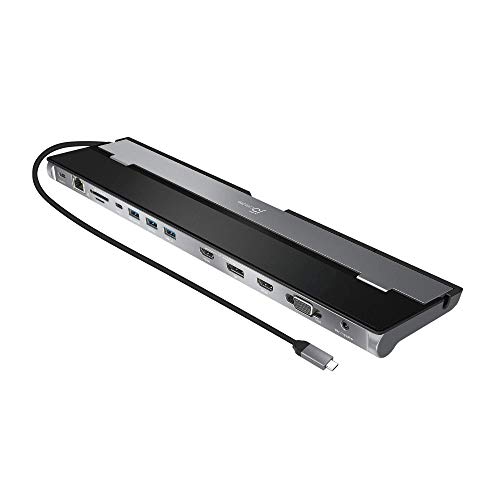
j5create Triple Display Laptop Stand Dock
Best for: triple-screen setups needing an integrated laptop stand
- Host Interface
- USB-C
- Display Support
- Triple
- Video Ports
- HDMI, DisplayPort, VGA
- Max Data Speed
- 5Gbps
- Ethernet Speed
- Gigabit
- Dimensions
- 14.1 × 3.48 × 1.1 inches
This wedge-shaped docking station doubles as an elevated laptop stand to aid cooling. It connects to your host computer via USB-C and drives up to three external screens using its HDMI, DisplayPort, and VGA outputs. You also get Gigabit Ethernet, SD and microSD readers, and a fast-charging USB-A port. It suits you if you need a multi-monitor desk setup that incorporates legacy video connections alongside pass-through charging.
Pros
- Supports up to three external displays across HDMI, DisplayPort, and VGA
- Built-in stand design elevates laptop to assist heat dissipation
- Includes integrated SD and microSD card slots plus Gigabit Ethernet
- USB-C port supports Power Delivery 3.0 charging
Cons
- Requires driver installation before use
- USB data speeds cap at 5Gbps
- Requires host USB-C port supporting DisplayPort Alt Mode and Power Delivery
Good fit if
- You want an angled stand that aids laptop heat dissipation.
- You need triple-display connectivity with HDMI, DisplayPort, and VGA.
- You use SD or microSD cards frequently at your desk.
Skip if
- You require peripheral data transfer speeds faster than 5Gbps.
- You cannot install drivers on your work computer.
- You lack a host USB-C port with DisplayPort Alt Mode support.
Verdict: j5create Triple Display Laptop Stand Dock serves as both an ergonomic laptop riser and a triple-display hub with legacy VGA and modern digital outputs. It offers practical connectivity if your system allows driver installation and supports DisplayPort Alt Mode.

Dell 7-in-1 USB-C Travel Hub
Best for: mobile professionals prioritizing lightweight portability
- Host Interface
- USB-C
- Port Count
- 7
- Video Ports
- HDMI, DisplayPort
- Ethernet Speed
- 2.5Gbps
- Connectivity
- USB-C, HDMI, Ethernet
- Use
- Travel
The Dell 7-in-1 USB-C Travel Hub is a pocket-sized docking adapter designed for mobile workstations. Weighing 3.36 ounces with a 2.8-inch square footprint, it adds seven connection ports through a single USB-C connection. You get HDMI 2.1, DisplayPort 1.4, two USB-C ports, two USB-A ports, and a high-speed 2.5Gbps Ethernet jack. This unit suits you if you frequently work remotely and need fast wired networking with external video outputs.
Pros
- Weighs 3.36 ounces with a 2.8 by 2.8-inch travel footprint
- Provides high-speed 2.5Gbps Ethernet connectivity
- Includes both HDMI 2.1 and DisplayPort 1.4 video outputs
- Supplies two USB-C and two USB-A ports
Cons
- Limited to seven total ports compared to larger desktop hubs
- No memory card slot or audio jack included in the specs
Good fit if
- You need a lightweight hub weighing under 4 ounces for packing into a bag.
- You require 2.5Gbps wired Ethernet and HDMI 2.1 or DisplayPort 1.4 video.
Skip if
- You need more than seven ports for a permanent multi-device desk setup.
- You require dedicated 3.5mm audio or SD card interfaces.
Verdict: Dell 7-in-1 USB-C Travel Hub delivers essential video, data, and 2.5Gbps networking in an ultra-compact 3.36-ounce frame. It provides dependable port expansion for mobile setups without adding desktop bulk.

Tobenone 15-in-2 Dual 4K MacBook Docking Station
Best for: MacBook users needing dual external display connectivity
- Host Interface
- Thunderbolt 3/4/5 USB-C
- Display Support
- Dual
- Max Resolution
- 4K@60Hz
- Power Delivery
- 85W
- Port Count
- 15
- Video Ports
- HDMI, VGA
View on Amazon: Tobenone 15-in-2 Dual 4K MacBook Docking Station
This 15-port docking station is designed specifically for compatible MacBooks, giving you dual external display support across two HDMI ports or VGA. You get up to 85W host charging pass-through from a 100W Power Delivery input, Gigabit Ethernet, and data transfers reaching 5Gbps. It suits you if you need a multi-screen workstation with physical peripheral expansion without installing software drivers on your supported Apple laptop.
Pros
- Supports dual 4K external displays at 30Hz or single 4K at 60Hz
- Pass-through Power Delivery supplies up to 85W to host laptop
- Includes 15 ports including Gigabit Ethernet, audio jack, and 5Gbps USB connections
- Plug-and-play operation requires no driver installation
Cons
- Power adapter is not included
- Incompatible with Windows laptops, Mac mini, iMac, and Mac Studio
- Base M1, M2, and M3 MacBooks support only one external display
Good fit if
- You use a compatible MacBook Pro or Air with dual external display support.
- You have a separate USB-C power supply capable of up to 100W input.
- You want a driver-free setup featuring Gigabit Ethernet and legacy USB ports.
Skip if
- You use a Windows laptop or desktop Mac like an iMac or Mac mini.
- You own a base M1, M2, or M3 MacBook and require two extended external displays.
- You need an included power adapter inside the box.
Verdict: Tobenone 15-Port Dual 4K MacBook Dock delivers comprehensive 15-port connectivity and dual-monitor output for compatible Apple laptops without third-party drivers. However, you must supply your own USB-C charger and verify your specific Mac chip supports dual displays.
Specifications side by side
| Spec | HODO 18-in-1 Triple Display USB-C Docking Station | VVB 8-in-1 USB-C Dock with 120W Adapter | Plugable Dual HDMI Universal Docking Station | Selore 13-in-1 Dual HDMI Docking Station | Mukiya 10-in-1 Triple Display Laptop Stand Dock | Baseus Spacemate 11-in-1 Triple Display Dock | Anker 14-in-1 USB-C Triple Display Dock | Selore 17-in-1 Triple 4K Docking Station | Giq Dual HDMI DisplayLink USB-C Dock | Dell Universal Triple 4K Display Dock | MOKiN 17-in-1 Triple Display USB-C Dock | Dell Thunderbolt 3 Docking Station | j5create Triple Display Laptop Stand Dock | Dell 7-in-1 USB-C Travel Hub | Tobenone 15-in-2 Dual 4K MacBook Docking Station |
|---|---|---|---|---|---|---|---|---|---|---|---|---|---|---|---|
| Host Interface | USB-C | Thunderbolt 4/3, USB4, USB-C | USB 3.0, USB-C | USB-C | USB-C | not specified | USB-C, USB4, Thunderbolt | USB-C, USB-A | USB-C | USB-C, USB-A | USB-C, USB4, Thunderbolt | Thunderbolt | USB-C | USB-C | Thunderbolt 3/4/5 USB-C |
| Display Support | Triple | Triple | Dual | Dual | Triple | Triple | Triple | Triple | Dual | Up to 3 | Triple | not specified | Triple | not specified | Dual |
| Max Resolution | 8K | 8K@30Hz, 4K@144Hz | 2560x1440 @ 50Hz | 4K@60Hz | 4K@60Hz | not specified | 4K | 4K | UHD@30Hz | 4K | 4K@60Hz | not specified | not specified | not specified | 4K@60Hz |
| Power Delivery | not specified | 100W | not specified | 100W | 100W | not specified | 80W | 100W | not specified | not specified | 85W | 130W | not specified | not specified | 85W |
| Port Count | 18 | 8 | not specified | 13 | 10 | 11 | 14 | 17 | not specified | not specified | 17 | not specified | not specified | 7 | 15 |
| Video Ports | HDMI, DisplayPort | HDMI, DisplayPort | HDMI | HDMI 2.0 | HDMI, DisplayPort | not specified | HDMI, VGA | HDMI, DisplayPort | HDMI | not specified | HDMI, DisplayPort | DisplayPort, HDMI, USB-C, Thunderbolt 3 | HDMI, DisplayPort, VGA | HDMI, DisplayPort | HDMI, VGA |
| Max Data Speed | 10Gbps | 10Gbps | not specified | 10Gbps | 5Gbps | not specified | 5 Gbps | 10Gbps | 5Gbps | not specified | 10Gbps | not specified | 5Gbps | not specified | 5Gbps |
| Ethernet Speed | 1Gbps | Gigabit Ethernet | Gigabit Ethernet | Gigabit | not specified | not specified | 1 Gbps | Gigabit Ethernet | not specified | not specified | 1Gbps | Gigabit Ethernet | Gigabit | 2.5Gbps | Gigabit |
| Resolution | not specified | not specified | not specified | not specified | 4K UHD | not specified | 1080p FHD | 4K UHD | not specified | 4K UHD | not specified | not specified | not specified | not specified | 4K UHD |
| Connectivity | not specified | USB-C | HDMI | USB-C, HDMI | USB-C, HDMI, DisplayPort | not specified | USB-C, HDMI, USB-A, VGA | HDMI, DisplayPort | HDMI | USB-C, USB-A | USB-C, HDMI, DisplayPort, Ethernet, USB-A | not specified | USB-C | USB-C, HDMI, Ethernet | not specified |
| Features | not specified | not specified | not specified | not specified | Kickstand | not specified | not specified | not specified | DisplayLink | not specified | not specified | not specified | not specified | not specified | not specified |
| Use | not specified | not specified | not specified | not specified | not specified | not specified | not specified | not specified | not specified | not specified | not specified | not specified | not specified | Travel | not specified |
| Dimensions | 5.7 × 2.32 × 0.47 inches | 1 × 0.5 × 1 inches | 6.45 × 3.22 × 4.02 inches | not specified | not specified | 2.59 × 2.59 × 4.84 inches | 5.91 × 2.13 × 0.67 inches | not specified | 4.53 × 2.36 × 0.59 inches | 3.1 × 3.1 × 1.2 inches | not specified | 3.5 × 8.1 × 1.1 inches | 14.1 × 3.48 × 1.1 inches | 2.8 × 2.8 × 1.03 inches | 2.8 × 2.4 × 4.7 inches |
| Weight | 5.29 ounces | 1 ounces | 13 ounces | 2.45 pounds | not specified | 1.07 pounds | 9.45 ounces | not specified | not specified | 13.4 ounces | not specified | 3.15 pounds | 11 ounces | 3.36 ounces | 1.06 pounds |
| Color | 18 IN 1 Docking station | not specified | Black | Space Grey | Silver | Space grey | Grey | Black Grey | Pink | Black | not specified | Black | Black | Black | Grey UDS009 |
| Size | not specified | not specified | Dual Display | not specified | not specified | Triple Monitor for Windows | 14 in 1 USB C Hub (Pack of 2) | Portable | JZ5087 | not specified | not specified | not specified | not specified | not specified | 2.8 x 2.4 x 4.7 inches |
| Model | not specified | not specified | UD-3900 | PU1102 | HUB-M94 | not specified | A8389 | Laptop Docking Station | D3908 | D6000S | not specified | WD19TB | JCD543 | DA326 | UDS009 |
If you also evaluate bedding specifications for your home, the guide to best comforters under 100 compares fill power and shell materials.
How to Choose the Best Docking Station
-
Check Monitor Count and Compatibility
Before selecting a dock, determine how many external screens you intend to run. Docks offer single, dual, or triple display configurations. You must also check operating system behavior. Windows natively supports multi-monitor extended desktops across different video ports. Some hardware setups, such as the Anker 14-in-1 USB-C Triple Display Dock, limit macOS computers to mirrored external screens instead of independent displays. Compare the display support specification against your computer platform so your external monitors extend your desktop rather than duplicate it.
-
Match Maximum Video Resolution
Examine the maximum video resolution listed for each display port. If you use high-density monitors, ensure the hardware supports 4K UHD rather than capping output at 1080p FHD. The Selore 13-in-1 Dual HDMI Docking Station specifies dual 4K output at 60Hz, providing crisp rendering for high-resolution panels. Lower-tier video ports may scale resolution down when multiple screens run simultaneously. Verify whether the published resolution applies to a single connected display or all active outputs, ensuring your monitors run at their native display capabilities.
-
Review Driver Installation Needs
Determine whether a dock relies on plug-and-play video or external software drivers. Docks using native DisplayPort Alt Mode send video immediately without software configuration. In contrast, docks featuring DisplayLink technology, such as the Giq Dual HDMI DisplayLink USB-C Dock, require driver software installed on your machine to drive video output. DisplayLink allows multi-monitor expansion across varied operating systems and USB-A connections, but managed work laptops may restrict third-party driver installations. Check your administrative permissions and operating system requirements before choosing a driver-dependent model.
-
Confirm Host Interface Protocol
Check the specific connection standard used between your laptop and the dock. Basic docks connect over standard USB-C or legacy USB-A, while advanced models use Thunderbolt technology. For instance, the Dell Thunderbolt 3 Docking Station uses a high-speed Thunderbolt 3 interface to handle substantial display bandwidth and fast data throughput. A Thunderbolt dock requires a matching Thunderbolt port on your computer to unlock its capabilities. Check your computer port icons and manufacturer specifications to confirm whether you have standard USB-C, DisplayPort Alt Mode, or Thunderbolt.
-
Evaluate Wired Network Speeds
Look closely at the Ethernet specifications if you rely on a stable wired local network. Not every dock includes an RJ45 Ethernet jack; some omit the port to maintain a slim design. When networking is integrated, speeds can vary significantly across models. For example, the Dell 7-in-1 USB-C Travel Hub features a fast 2.5Gbps Ethernet port, exceeding standard Gigabit connections for high-speed local data transfers. If you need wired internet for conference calls or file backups, confirm an Ethernet port is present and matches your network infrastructure.
-
Assess Physical Form Factor
Consider desk space and ergonomics when choosing between physical dock styles. Traditional docking stations sit horizontally or vertically on your desktop to manage connected cables. Other units integrate ergonomic utility directly into their chassis. The Mukiya 10-in-1 Triple Display Laptop Stand Dock features a built-in kickstand designed to elevate your laptop screen while expanding ports. If you work from a fixed desk with limited room, a stand dock or compact vertical unit saves surface area, whereas flat horizontal hubs fit neatly underneath external monitor stands.
Frequently asked questions
Can you use a docking station with a USB-A laptop?
Yes, certain universal docking stations support USB-A connections alongside USB-C. The Plugable UD-3900 connects to both USB-A and USB-C computers for dual-display productivity, though it does not provide host power delivery. Dell Universal D6000S also supports USB-A and USB-C hosts to output to three 4K displays. Standard USB-A ports transfer display data via specialized chips rather than native video passthrough.
Do all docking stations charge your connected laptop?
No, docking stations handle host charging differently depending on their design. Some units include dedicated power supplies, such as the VVB 8-in-1 with its 120W adapter. Other docks, like the Mukiya 10-in-1 Stand Dock, rely on pass-through charging where you connect your own USB-C charger. Certain models, including the Giq Dual HDMI dock and Plugable UD-3900, provide no laptop charging at all.
How do laptop stand docking stations differ from desktop blocks?
Stand docking stations integrate an elevated physical riser directly into the port expansion housing. Units like the j5create JCD543 and the Mukiya 10-in-1 HUB-M94 function as physical laptop stands while providing multiple video outs and peripheral ports. This dual-purpose form factor raises your screen for improved viewing angles without requiring a separate riser accessory, saving physical desk footprint in portable or compact workstation arrangements.
Can you connect legacy VGA monitors to modern USB-C docks?
Yes, specific docking stations include analog VGA ports alongside modern digital connections. The Anker 14-in-1 USB-C Dock and the j5create JCD543 feature built-in VGA ports alongside HDMI or DisplayPort outputs. This lets you connect older monitors or projectors directly to your setup without purchasing external video adapters or dongles. Newer models typically phase out analog video in favor of HDMI and DisplayPort.
Why do some docking stations require driver installations?
Docks that output multiple displays over standard USB data channels often require software drivers to render video. Models utilizing DisplayLink technology, such as the Giq D3908, need software drivers installed on your operating system to convert video data across USB connections. Similarly, docks like the MOKiN 17-in-1 require drivers to enable triple 4K output across mixed platforms where native DisplayPort Alt Mode bandwidth is insufficient.
What should you check before using a multi-display dock on macOS?
You must verify whether the dock natively extends displays or mirrors them under macOS. Many multi-monitor docks, such as the Anker 14-in-1, only support mirrored external displays on macOS due to operating system video transport limitations. Conversely, docks like the Tobenone UDS009 support dual 4K external screens on compatible Apple laptops without third-party drivers, provided your specific Mac chip natively supports more than one external display.
What is the benefit of a docking station with a built-in display screen?
Built-in display screens provide immediate visual feedback regarding connection status and power delivery. The Selore 13-in-1 PU1102 and Selore 17-in-1 feature integrated hardware monitors directly on the chassis. These screens display real-time readouts of host power consumption and peripheral connection status. This visual feedback allows you to diagnose charging bottlenecks and verify active video channels instantly without navigating operating system diagnostic menus.