15 Best Docking Stations with DisplayPort, Compared
As an Amazon Associate we earn from qualifying purchases. Links on this page are affiliate links.
Connecting an external monitor often requires a reliable docking station with DisplayPort to handle higher resolutions and refresh rates. We compared 15 models based on the specifications published on their listings to find the best options for your setup. The Dell Pro USB-C 100W Docking Station takes the top spot because it pairs 100W Power Delivery with support for up to four external screens.
This guide helps you choose the right connection type, display count, and charging capacity for your workstation.
Quick picks
The best fit for you
- You need 100W laptop charging and four external displays Dell Pro USB-C 100W Docking Station It provides 100W Power Delivery and native support for up to four screens via DisplayPort, HDMI, and USB-C.
- You need Thunderbolt 4 connectivity with 130W power delivery Dell Pro Thunderbolt 4 Dock with 130W Charging It offers 130W charging alongside Thunderbolt 4 and dual DisplayPort 1.4 connections for 4K setups.
- You want a lightweight hub with wired Gigabit Ethernet Vicfluxion 9-in-1 USB-C Hub with DisplayPort It combines a Gigabit Ethernet port with dual 4K DisplayPort outputs in a 0.16-pound frame.
- You need dual 4K video output at 60Hz Plugable Dual 4K USB-C Docking Station It delivers dual 4K video at 60Hz over DisplayPort alongside 100W power delivery.
Our 15 picks

Dell Pro USB-C 100W Docking Station
Best for: multi-display setups needing 100W laptop charging
- Connectivity
- USB-C, HDMI, DisplayPort (what this guide is about)
- Host Interface
- USB-C
- Power Delivery
- 100W
- Video Ports
- DisplayPort, HDMI
- Dimensions
- 8.07 × 3.54 × 1.39 inches
- Weight
- 1.21 pounds
The Dell Pro USB-C Docking Station connects your laptop to desktop peripherals and external monitors using USB-C, HDMI, and DisplayPort connections. It delivers up to 100W of power to Dell and non-Dell systems, while natively supporting up to four external displays. A reversible host cable routes left or right across your desk. This setup suits you if you need multi-screen output and unified device charging through a single connection.
Pros
- Supplies up to 100W of power delivery to connected laptops
- Supports up to four external displays via DisplayPort and HDMI
- Ambidextrous USB-C host cable routes to the left or right
- Constructed with at least 65% post-consumer recycled materials
Cons
- Charging output is capped at 100W
- Specific DisplayPort and HDMI version numbers are not listed
Good fit if
- You need to drive up to four external monitors from a single dock.
- You want up to 100W power delivery to charge your laptop over USB-C.
- You require a reversible cable that routes to either side of your desk.
Skip if
- You require more than 100W of power delivery for a high-draw laptop.
- You need explicit verification of DisplayPort revision versions before buying.
Verdict: Dell Pro USB-C Docking Station delivers 100W of charging alongside multi-monitor DisplayPort connectivity for clean desktop setups. It gives you native support for up to four external screens through a single reversible USB-C cable.

MOKiN 8-in-1 Dual DisplayPort USB-C Dock
Best for: dual DisplayPort setups on basic peripheral budgets
- Connectivity
- USB-C, HDMI, DisplayPort, VGA (what this guide is about)
- Host Interface
- USB-C
- Max Resolution
- 4K@60Hz
- Power Delivery
- 100W
- Port Count
- 8
- Video Ports
- 2 DP, HDMI, VGA
This MOKiN 8-in-1 hub expands a single full-featured USB-C port into dual DisplayPort outputs running at up to 4K resolution at 60Hz. It also features HDMI, VGA, and 100W USB-C Power Delivery charging. Data connectivity includes two USB-A 2.0 ports and one USB-C 2.0 port with transfer rates capped at 480Mbps. It suits you if you need dual DisplayPort monitor output alongside laptop charging without paying for high-speed peripheral data.
Pros
- Dual DisplayPort connections supporting up to 4K at 60Hz
- 100W USB-C Power Delivery pass-through charging
- Includes HDMI and VGA legacy video outputs
- Lightweight build weighing 0.22 pounds
Cons
- USB data ports limited to USB 2.0 speeds up to 480Mbps
- macOS devices limited to mirrored display mode
- No built-in Ethernet port for wired networking
Good fit if
- You need dual 4K 60Hz DisplayPort monitor feeds from a single USB-C port.
- You require up to 100W Power Delivery pass-through charging.
- You connect basic peripherals like keyboards and mice that do not need USB 3.0.
Skip if
- You use macOS and require extended desktop across multiple external displays.
- You transfer large files frequently and require USB 3.0 or faster data ports.
- You need a dedicated wired Gigabit Ethernet connection.
Verdict: MOKiN 8-in-1 Dual DisplayPort Docking Station delivers dual 4K 60Hz DisplayPort outputs and 100W Power Delivery pass-through in an ultra-lightweight profile. Its data ports run at USB 2.0 speeds, making it best for display-focused setups rather than fast file transfers.

Dell Pro Thunderbolt 4 Dock with 130W Charging
Best for: quad 4K setups and Thunderbolt daisy-chaining
- Connectivity
- USB-C, HDMI, DisplayPort, Thunderbolt 4 (what this guide is about)
- Host Interface
- Thunderbolt 4
- Display Support
- Up to 4
- Max Resolution
- 4K
- Power Delivery
- Up to 130W
- Video Ports
- HDMI 2.1, DP 1.4, USB-C, Thunderbolt 4
View on Amazon: Dell Pro Thunderbolt 4 Dock with 130W Charging
The Dell Pro Thunderbolt 4 Smart Dock expands your laptop into a high-bandwidth workstation. It features two DisplayPort 1.4 outputs, an HDMI 2.1 port, and two Thunderbolt 4 ports, letting you drive up to four 4K displays. It supplies up to 130W of power delivery to Dell systems and 96W to other laptops. This setup suits you if you need high display bandwidth and device daisy-chaining.
Pros
- Supports up to four 4K displays via DisplayPort 1.4, HDMI 2.1, and Thunderbolt 4
- Delivers up to 130W power to Dell laptops and 96W to other systems
- Allows daisy-chaining for up to six devices over Thunderbolt 4
- Features remote Wi-Fi management via Intel AMT and Dell Console
Cons
- Power delivery drops to 96W on non-Dell systems
- Requires Thunderbolt 4 to utilize full display and daisy-chain bandwidth
Good fit if
- You want to connect up to four 4K monitors using DisplayPort and HDMI.
- You use a Dell laptop that supports up to 130W power delivery.
- You need to daisy-chain multiple Thunderbolt accessories.
Skip if
- You use a non-Dell laptop that requires more than 96W to charge.
- You have a basic workstation that does not need Thunderbolt 4 bandwidth.
Verdict: Dell Pro Thunderbolt 4 Smart Dock delivers expansive monitor bandwidth with dual DisplayPort 1.4 and Thunderbolt 4 connectivity. It provides reliable multi-monitor performance and fast charging for demanding multi-screen setups.

Dell USB-C Docking Station with 130W Power Delivery
Best for: Laptops needing 130W charging and DisplayPort monitors
- Connectivity
- USB-C, HDMI, DisplayPort (what this guide is about)
- Host Interface
- USB-C
- Power Delivery
- 130W
- Video Ports
- HDMI, DisplayPort
- Dimensions
- 1.1 × 3.5 × 8.1 inches
- Weight
- 1.28 pounds
View on Amazon: Dell USB-C Docking Station with 130W Power Delivery
This black Dell USB-C docking station provides 130W of Power Delivery to charge your connected laptop through a single cable. For your display setup, the unit features dual DisplayPort outputs along with an HDMI port. Measuring 8.1 by 3.5 by 1.1 inches and weighing 1.28 pounds, it fits desks where you need multi-monitor DisplayPort connectivity alongside high-wattage charging without adding excessive bulk to your workspace.
Pros
- 130W USB-C power delivery support
- Dual DisplayPort outputs alongside HDMI
- Compact dimensions of 8.1 by 3.5 by 1.1 inches
- Weight of 1.28 pounds
Cons
- No integrated audio jacks listed
- No memory card slots listed
Good fit if
- You need up to 130W power delivery for your laptop.
- You use monitors that connect via DisplayPort or HDMI.
Skip if
- You require built-in 3.5 mm audio connectivity on the dock.
- You need integrated SD or microSD card slots.
Verdict: Dell 130W USB-C Dock with Dual DisplayPort delivers high-wattage power delivery alongside versatile dual DisplayPort outputs for multi-monitor workstation setups.

Selore 13-in-1 Triple Display USB-C Dock
Best for: multi-monitor desks needing 10Gbps USB-C connectivity
- Connectivity
- USB-C, HDMI, DisplayPort (what this guide is about)
- Host Interface
- USB-C
- Display Support
- Triple
- Max Resolution
- 4K@60Hz
- Power Delivery
- 100W
- Port Count
- 13
This 13-in-1 USB-C docking station adds a DisplayPort output supporting up to 4K at 60Hz alongside two HDMI ports for multi-display setups. It provides two 10Gbps USB-C ports, one 10Gbps USB-A port, two USB 2.0 ports, Gigabit Ethernet, SD card slots, and 100W Power Delivery 3.0 input. You get wide peripheral connectivity in a lightweight hub if your laptop supports DisplayPort Alternate Mode or Thunderbolt 3 or 4.
Pros
- DisplayPort and HDMI 1 support video up to 4K at 60Hz
- Three 10Gbps USB ports across USB-C and USB-A
- Supports up to 100W Power Delivery 3.0 charging input
- Includes Gigabit Ethernet and a 3.5mm audio jack
Cons
- HDMI 2 port resolution caps at 4K at 30Hz
- SD and microSD slots transfer at 10 to 40MB/s
- Two USB-A ports run at USB 2.0 speeds
Good fit if
- You need a DisplayPort connection alongside HDMI ports for multi-monitor setups.
- You want 10Gbps data transfer on both USB-C and USB-A connections.
- You use a host laptop supporting DP Alt Mode or Thunderbolt 3 or 4.
Skip if
- You need 4K at 60Hz output on every connected HDMI monitor simultaneously.
- You require high-speed memory card transfer rates beyond 40MB/s.
Verdict: Selore 13-in-1 USB-C Dock with DisplayPort delivers extensive video and peripheral expansion, including 4K at 60Hz over DisplayPort, for laptops with DP Alt Mode.
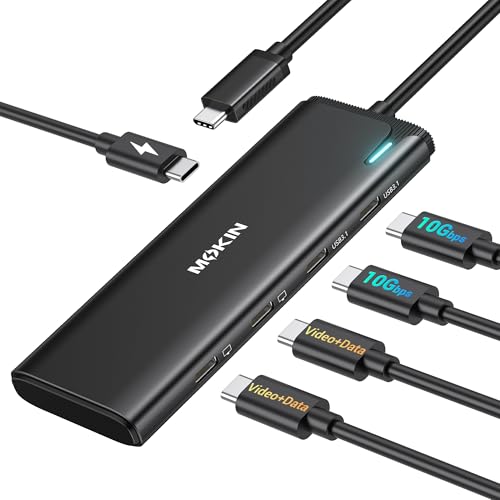
MOKiN 5-in-1 Dual USB-C Monitor Hub
Best for: Windows dual USB-C monitor setups
- Connectivity
- USB-C, DisplayPort (what this guide is about)
- Host Interface
- USB4, Thunderbolt 4
- Display Support
- Dual
- Max Resolution
- 4K@60Hz
- Power Delivery
- 87W
- Port Count
- 5
This 5-in-1 USB-C hub acts as a display splitter, driving dual 4K monitors at 60Hz through DisplayPort Alt Mode 1.4. You get two USB-C display outputs, two 10Gbps USB-C 3.1 data ports, and up to 87W pass-through charging from a 100W Power Delivery input. It suits you if you use a Windows USB4 or Thunderbolt laptop and need dual Ultra HD video without bulky adapters.
Pros
- Supports dual 4K displays at 60Hz via DisplayPort Alt Mode 1.4
- Two 10Gbps USB-C 3.1 data ports
- 100W Power Delivery input providing up to 87W laptop charging
- Lightweight compact profile at roughly 0.12 pounds
Cons
- No dual-monitor MST support on macOS
- Lacks standard full-size DisplayPort, HDMI, and USB-A ports
- Power adapter and charging cable not included
Good fit if
- You use a Windows laptop with Thunderbolt 4 or USB4
- You need dual 4K 60Hz outputs to USB-C displays
- You want high-speed 10Gbps USB-C data transfers alongside display output
Skip if
- You use a macOS laptop and need dual extended displays
- You connect monitors using native full-size DisplayPort or HDMI cables without adapters
- You require legacy USB-A ports for older peripherals
Verdict: MOKiN 5-in-1 Dual 4K USB-C Hub delivers dual 4K 60Hz DisplayPort Alt Mode video and 10Gbps data speeds in a compact design. It is a capable choice for Windows Thunderbolt and USB4 setups that rely strictly on USB-C connections.

Anker 565 11-in-1 Dual Display USB-C Hub
Best for: portable dual-monitor Windows laptop setups
- Connectivity
- USB-C, HDMI, DisplayPort (what this guide is about)
- Host Interface
- USB-C
- Display Support
- Dual
- Max Resolution
- 4K
- Power Delivery
- 85W
- Port Count
- 11
This 11-in-1 portable USB-C hub expands your laptop with a DisplayPort and an HDMI port for dual monitor setups. You get single 4K output or dual displays up to 2K at 60Hz on DisplayPort 1.4 systems. It also provides 85W pass-through charging, 10 Gbps data ports, Ethernet, and SD slots. This hub suits you if you need a lightweight, pocket-sized dock for traveling between desks.
Pros
- Dedicated DisplayPort and HDMI ports for dual-monitor setups
- Up to 85W pass-through charging via 100W Power Delivery input
- High-speed 10 Gbps USB-C and USB-A data ports
- Compact design weighing 0.3 pounds
Cons
- Dual display resolution is capped at 2K at 60Hz
- External displays mirror identically on macOS
- Requires a separate charger for pass-through power
Good fit if
- You want DisplayPort and HDMI outputs in a lightweight 0.3-pound hub.
- You use a Windows laptop with DisplayPort 1.4 and need dual external screens.
- You need 10 Gbps transfer speeds alongside multi-port expansion.
Skip if
- You use macOS and require extended independent dual displays.
- You run Linux, which is listed as incompatible.
- You need simultaneous dual 4K display output.
Verdict: Anker 11-in-1 USB-C Hub with DisplayPort delivers versatile video and high-speed data connectivity in a compact 0.3-pound package. It offers reliable dual-display connectivity for Windows users who already carry a USB-C power adapter.

Plugable Dual 4K USB-C Docking Station
Best for: dual 4K displays on Mac setups
- Connectivity
- USB-C, HDMI, DisplayPort (what this guide is about)
- Host Interface
- USB-C
- Display Support
- Dual
- Max Resolution
- 4K@60Hz
- Power Delivery
- 100W
- Port Count
- 14
This 14-in-1 aluminum USB-C dock connects dual 4K monitors at 60Hz using DisplayPort, HDMI, or both. It provides up to 100W laptop charging alongside Ethernet, SD and microSD readers, a 3.5mm audio jack, and multiple USB ports. It uses DisplayLink drivers to route dual screens even on basic Mac chips. This dock suits you if you need full dual-display workstation connectivity from a single cable.
Pros
- Dual 4K display output at 60Hz via DisplayPort or HDMI
- 100W power delivery for host laptop charging
- 14-in-1 design includes Ethernet, audio, and SD/microSD slots
- DisplayLink technology circumvents single-display limits on M-series Macs
Cons
- Requires driver installation for full functionality
- Does not support HDCP playback
Good fit if
- You want dual 4K 60Hz displays via DisplayPort or HDMI
- You use a Mac that natively supports only one external monitor
- You need 100W charging alongside integrated SD card readers
Skip if
- You need HDCP support for copy-protected media
- You cannot install third-party drivers on your computer
Verdict: Plugable Dual 4K DisplayPort USB-C Dock provides dual 4K 60Hz DisplayPort outputs and 100W charging to bypass external screen limits on compatible systems.

Vicfluxion 9-in-1 USB-C Hub with DisplayPort
Best for: wired Gigabit network and dual-display setups
- Connectivity
- USB-C, HDMI, DisplayPort, Ethernet (what this guide is about)
- Host Interface
- USB-C
- Display Support
- Dual
- Max Resolution
- 4K@60Hz
- Power Delivery
- 90W
- Port Count
- 9
View on Amazon: Vicfluxion 9-in-1 USB-C Hub with DisplayPort
This compact 9-in-1 USB-C hub expands your laptop with both DisplayPort and HDMI outputs supporting up to 4K at 60Hz. It includes a Gigabit Ethernet port for stable 1000Mbps wired networking, USB-A 3.0 ports, and SD/TF card readers. It supports 100W Power Delivery input to supply up to 90W to your laptop. It suits you if you need wired network access and dual-display connectivity in a lightweight setup.
Pros
- Dual 4K video output at up to 60Hz via DisplayPort and HDMI
- Gigabit RJ45 Ethernet port supporting up to 1000Mbps speeds
- Pass-through charging supplies up to 90W to host laptops
- Integrated SD and TF card readers with SD 3.0 transfer support
Cons
- Power adapter and charging cable are not included
- Host device requires DP 1.4 Alt Mode to hit 4K at 60Hz
- USB data ports do not support video transmission
Good fit if
- You need a dedicated Gigabit Ethernet port for reliable wired internet.
- You want to connect DisplayPort and HDMI monitors up to 4K at 60Hz.
- You need integrated SD and TF card slots for offloading media.
Skip if
- You need an included power supply rather than using your own USB-C charger.
- Your laptop lacks USB-C DisplayPort Alt Mode support.
Verdict: Vicfluxion 9-in-1 Dual 4K USB-C Hub delivers reliable Gigabit Ethernet and dual 4K video outputs in an ultra-portable profile. It provides essential wired networking and multi-screen connectivity without excess bulk.
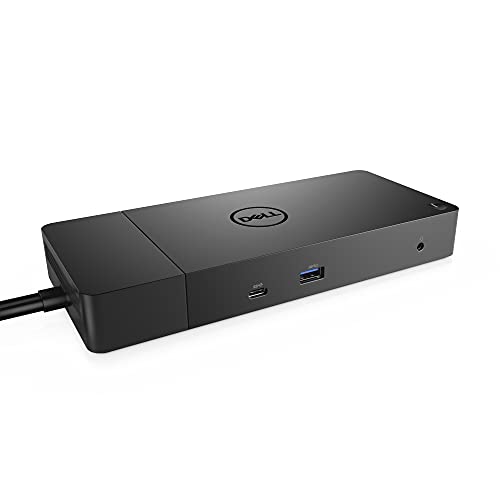
Dell 180W USB-C Docking Station
Best for: high-power laptops needing dual DisplayPort connections
- Connectivity
- USB-C, HDMI, DisplayPort (what this guide is about)
- Host Interface
- USB-C
- Power Delivery
- 130W
- Video Ports
- DisplayPort, HDMI, USB-C
- Ethernet Speed
- Gigabit Ethernet
- Dimensions
- 3.5 × 8.1 × 1.1 inches
This Dell docking station connects to your laptop over a 3.3-foot USB-C cable and supplies up to 130W of Power Delivery via its 180W power adapter. It features two DisplayPort 1.4 outputs, one HDMI port, and one USB-C multifunction DisplayPort connection for external screens. You also get Gigabit Ethernet, three USB-A ports, and audio jacks. It suits you if you need high power delivery and dedicated DisplayPort connections for multiple monitors.
Pros
- Supplies 130W Power Delivery using an included 180W AC adapter
- Provides two DisplayPort 1.4 ports and one HDMI port
- Includes a 3.3-foot SuperSpeed USB-C cable
- Offers three USB-A 3.1 ports, including one with PowerShare
- Includes Gigabit Ethernet RJ45 and dedicated audio ports
Cons
- Weighs 1.3 pounds and occupies 8.1 by 3.5 inches of desk space
- Host cable length is limited to 3.3 feet
Good fit if
- You need up to 130W Power Delivery for your laptop.
- You use external monitors that require DisplayPort 1.4 inputs.
- You want wired Gigabit Ethernet and external audio connections built into your dock.
Skip if
- You need a lightweight, travel-sized hub instead of a 1.3-pound desktop dock.
- You require a host cable longer than 3.3 feet for your desk setup.
Verdict: Dell 180W USB-C Dock with Dual DisplayPort delivers 130W Power Delivery and dual DisplayPort 1.4 video connections for your workstation. It functions as a complete desktop hub with Gigabit Ethernet and multiple USB ports.
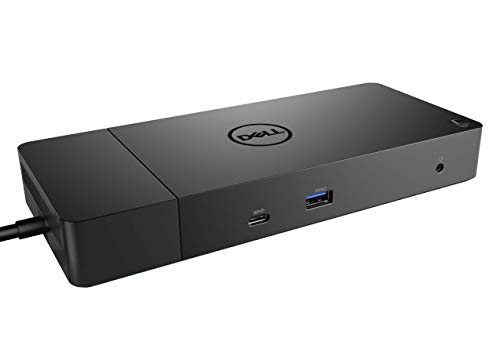
Dell WD19 90W Docking Station
Best for: dual DisplayPort setups needing 90W laptop charging
- Connectivity
- USB-C, HDMI, DisplayPort (what this guide is about)
- Host Interface
- USB-C
- Power Delivery
- 90W
- Video Ports
- DisplayPort, HDMI, USB-C
- Ethernet Speed
- Gigabit Ethernet
- Dimensions
- 3.5 × 1.1 × 8.1 inches
This Dell docking station connects to your laptop via USB-C and features two DisplayPort 1.4 outputs along with an HDMI 2.0b port and a multifunction USB-C DisplayPort. It delivers up to 90W of power to your computer using its included 130W power adapter. It suits you if you need dedicated dual DisplayPort video connections alongside wired Gigabit Ethernet, separate audio ports, and multiple USB ports for your desktop setup.
Pros
- Dual DisplayPort 1.4 outputs plus an HDMI 2.0b port
- Provides up to 90W Power Delivery to the connected laptop
- Includes Gigabit Ethernet and separate headphone and audio-out jacks
- Features a USB-C Multifunction DisplayPort connection
Cons
- Laptop power delivery is limited to 90W
- USB-A ports are limited to 3.1 Gen 1 transfer speeds
Good fit if
- You connect your workstation monitors using two full-sized DisplayPort connections.
- You require 90W USB-C charging alongside wired Gigabit Ethernet.
- You want separate headphone combo and audio line-out ports on your desk.
Skip if
- You use a high-draw laptop requiring more than 90W of power delivery.
- You need USB 3.1 Gen 2 speeds across your USB-A peripheral ports.
Verdict: Dell USB-C Dock with Dual DisplayPort provides dual DisplayPort 1.4 connections, versatile display options, and 90W power delivery for your desk. It gives you stable video routing and essential legacy peripheral ports in a single desktop unit.

LIONWEI 13-in-1 Dual HDMI DisplayPort Dock
Best for: Windows setups needing DisplayPort and dual HDMI
- Connectivity
- USB-C, HDMI, DisplayPort (what this guide is about)
- Host Interface
- USB-C
- Display Support
- Triple
- Max Resolution
- 8K@30Hz
- Power Delivery
- 85W
- Port Count
- 13
This LIONWEI 13-in-1 docking station connects to your laptop via USB-C to provide one DisplayPort up to 8K at 30Hz and two HDMI ports up to 4K at 60Hz. It routes up to 85W of pass-through charging from a 100W source while delivering 10Gbps data transfers across USB-C and USB 3.1 connections. It suits Windows multi-monitor desk setups needing mixed video outputs.
Pros
- DisplayPort supports output up to 8K at 30Hz
- Two USB-C ports provide 10Gbps data transfer and 100W PD support
- Includes Gigabit Ethernet, 3.5mm audio, and six USB-A ports
- Passes up to 85W of charging power to the host computer
Cons
- macOS does not support MST extend mode and is limited to SST
- Dock uses 15W of operating power, reducing 100W input to 85W output
- Maximum 8K DisplayPort resolution runs at 30Hz
Good fit if
- You run a Windows laptop and need MST multi-monitor desktop extension
- You connect displays using both DisplayPort and HDMI cables
- You need 10Gbps transfer speeds for external USB-C drives
Skip if
- You use macOS and require multiple extended independent screens
- You have a workstation laptop requiring more than 85W of charging power
Verdict: LIONWEI 13-in-1 DisplayPort Docking Station provides versatile video connectivity and 10Gbps transfer speeds in a compact profile. It is a solid match for Windows users seeking DisplayPort output alongside dual HDMI monitors.

Plugable Dual 4K DisplayPort and HDMI Dock
Best for: dual 4K productivity without host charging
- Connectivity
- USB-C, HDMI, DisplayPort (what this guide is about)
- Host Interface
- USB-C, USB 3.0
- Display Support
- Dual
- Max Resolution
- 3840x2160 @ 60Hz
- Video Ports
- HDMI, DisplayPort
- Ethernet Speed
- Gigabit
This vertical docking station connects to your laptop via USB-C or USB 3.0 and drives two 4K monitors at 60Hz using DisplayPort or HDMI ports. It expands your workstation with six USB 3.0 ports, Gigabit Ethernet, and an audio jack using DisplayLink technology. It suits office multitasking across Windows, macOS, or ChromeOS when you need dual DisplayPort screens without requiring host power delivery from the dock.
Pros
- Dual 4K display output at 60Hz via DisplayPort or HDMI
- Works with both USB-C and USB 3.0 host connections
- Six USB 3.0 ports, Gigabit Ethernet, and an audio jack
- Plug-and-play support for Windows and ChromeOS
Cons
- Does not charge the host computer
- Does not support HDCP playback or gaming
- Incompatible with Linux
Good fit if
- You need dual 4K monitors running at 60Hz via DisplayPort for office work.
- You want compatibility with both USB-C and older USB 3.0 laptops.
- You need to connect up to six standard USB peripherals.
Skip if
- You need your dock to charge your laptop battery.
- You watch HDCP-protected media or run video games.
- You use a computer running Linux.
Verdict: Plugable Dual DisplayPort USB-C Dock provides dual 4K 60Hz display outputs and generous peripheral ports for office workstations. It is a capable choice if your laptop has its own separate power source.

Lenovo USB-C Universal Business Dock
Best for: dual displays needing DisplayPort and USB-A
- Connectivity
- USB-C, HDMI, DisplayPort, USB-A (what this guide is about)
- Host Interface
- USB-C
- Display Support
- Dual
- Max Resolution
- 4K
- Power Delivery
- 65W
- Port Count
- 9
The Lenovo USB-C Business Dock expands your laptop workspace using a single cable connection. It provides one DisplayPort 1.4 output and one HDMI 2.0 port to drive dual 4K displays. The unit houses nine ports, including USB-A and USB-C connections, while supplying up to 65W of charging power with the included 90W power adapter. It suits you if you need a compact desk dock for dual-screen productivity.
Pros
- Dedicated DisplayPort 1.4 and HDMI 2.0 video outputs
- Supports dual 4K monitor setups
- Nine total ports including USB-A and USB-C
- Includes 90W power adapter supplying 65W charging
- Compact chassis weighing 0.57 pounds
Cons
- Provides only one DisplayPort connection
- Supplies 65W charging unless you buy an optional 135W adapter
- Requires laptop USB-C port with Alt Mode or Thunderbolt support
Good fit if
- You need a mixed DisplayPort and HDMI configuration for dual monitors.
- You use USB-A peripherals alongside your display outputs.
- You want a lightweight dock under one pound with an included power brick.
Skip if
- You need dual native DisplayPort connections without using HDMI.
- You require more than 65W of charging without buying extra accessories.
- You use a host laptop that lacks USB-C DisplayPort Alt Mode.
Verdict: Lenovo USB-C Business Dock with DisplayPort delivers dual-display video output through DisplayPort 1.4 and HDMI 2.0 with nine total connection ports. It keeps desktop setups clean while providing 65W power delivery and USB-A connectivity.

Lenovo ThinkPad Thunderbolt 3 Dock Gen 2
Best for: Thunderbolt 3 setups needing dual DisplayPort
- Connectivity
- USB-C, HDMI, DisplayPort, Thunderbolt 3 (what this guide is about)
- Host Interface
- Thunderbolt 3
- Display Support
- Dual
- Max Resolution
- 4K
- Video Ports
- HDMI, DisplayPort
- Ethernet Speed
- 10Base-T/100Base-TX/1000Base-T
This dock connects via Thunderbolt 3 to power your workstation setup. It includes two DisplayPort video outputs and two HDMI ports supporting dual 4K UHD displays. You also get five USB 3.1 Gen 2 ports, Gigabit Ethernet, and an included 135W power adapter. It suits you if you need high-bandwidth Thunderbolt 3 connectivity and dual DisplayPort monitor outputs for supported Windows laptops.
Pros
- Two DisplayPort and two HDMI outputs
- Thunderbolt 3 host connectivity
- Five USB 3.1 Gen 2 ports with one always-on charging port
- Includes 135W power adapter and Thunderbolt 3 cable
- Supports dual 4K UHD display output
Cons
- Operating system support listed only for Windows 7 and Windows 10
- Security lock sold separately
- Weighs 2 pounds
Good fit if
- You need dual DisplayPort outputs for dual 4K UHD monitors
- You want Thunderbolt 3 host connectivity with dedicated power
- You use a compatible ThinkPad running Windows 10 or Windows 7
Skip if
- You require official support for operating systems beyond Windows 7 or 10
- You want a compact, lightweight adapter for travel
Verdict: Lenovo ThinkPad Thunderbolt 3 Dock Gen 2 delivers dual DisplayPort outputs and fast data transfer across multiple USB 3.1 Gen 2 ports. It offers a capable desktop expansion option for compatible Windows systems using Thunderbolt 3.
Specifications side by side
| Spec | Dell Pro USB-C 100W Docking Station | MOKiN 8-in-1 Dual DisplayPort USB-C Dock | Dell Pro Thunderbolt 4 Dock with 130W Charging | Dell USB-C Docking Station with 130W Power Delivery | Selore 13-in-1 Triple Display USB-C Dock | MOKiN 5-in-1 Dual USB-C Monitor Hub | Anker 565 11-in-1 Dual Display USB-C Hub | Plugable Dual 4K USB-C Docking Station | Vicfluxion 9-in-1 USB-C Hub with DisplayPort | Dell 180W USB-C Docking Station | Dell WD19 90W Docking Station | LIONWEI 13-in-1 Dual HDMI DisplayPort Dock | Plugable Dual 4K DisplayPort and HDMI Dock | Lenovo USB-C Universal Business Dock | Lenovo ThinkPad Thunderbolt 3 Dock Gen 2 |
|---|---|---|---|---|---|---|---|---|---|---|---|---|---|---|---|
| Host Interface | USB-C | USB-C | Thunderbolt 4 | USB-C | USB-C | USB4, Thunderbolt 4 | USB-C | USB-C | USB-C | USB-C | USB-C | USB-C | USB-C, USB 3.0 | USB-C | Thunderbolt 3 |
| Display Support | not specified | not specified | Up to 4 | not specified | Triple | Dual | Dual | Dual | Dual | not specified | not specified | Triple | Dual | Dual | Dual |
| Max Resolution | not specified | 4K@60Hz | 4K | not specified | 4K@60Hz | 4K@60Hz | 4K | 4K@60Hz | 4K@60Hz | not specified | not specified | 8K@30Hz | 3840x2160 @ 60Hz | 4K | 4K |
| Power Delivery | 100W | 100W | Up to 130W | 130W | 100W | 87W | 85W | 100W | 90W | 130W | 90W | 85W | not specified | 65W | not specified |
| Port Count | not specified | 8 | not specified | not specified | 13 | 5 | 11 | 14 | 9 | not specified | not specified | 13 | not specified | 9 | not specified |
| Video Ports | DisplayPort, HDMI | 2 DP, HDMI, VGA | HDMI 2.1, DP 1.4, USB-C, Thunderbolt 4 | HDMI, DisplayPort | HDMI, DisplayPort | USB-C | HDMI, DisplayPort | HDMI, DisplayPort | HDMI, DisplayPort | DisplayPort, HDMI, USB-C | DisplayPort, HDMI, USB-C | HDMI, DisplayPort | HDMI, DisplayPort | DP 1.4, HDMI 2.0 | HDMI, DisplayPort |
| Max Data Speed | not specified | 480Mbps | not specified | not specified | 10Gbps | 10Gbps | 10 Gbps | not specified | not specified | not specified | not specified | 10Gbps | not specified | not specified | not specified |
| Ethernet Speed | not specified | not specified | 2.5GbE | not specified | Gigabit | not specified | not specified | not specified | 1000Mbps | Gigabit Ethernet | Gigabit Ethernet | Gigabit | Gigabit | not specified | 10Base-T/100Base-TX/1000Base-T |
| Resolution | not specified | not specified | 4K UHD | not specified | not specified | 4K UHD | 4K UHD | 4K UHD | 4K UHD | not specified | not specified | 4K UHD | not specified | not specified | 4K UHD |
| Connectivity | USB-C, HDMI, DisplayPort | USB-C, HDMI, DisplayPort, VGA | USB-C, HDMI, DisplayPort, Thunderbolt 4 | USB-C, HDMI, DisplayPort | USB-C, HDMI, DisplayPort | USB-C, DisplayPort | USB-C, HDMI, DisplayPort | USB-C, HDMI, DisplayPort | USB-C, HDMI, DisplayPort, Ethernet | USB-C, HDMI, DisplayPort | USB-C, HDMI, DisplayPort | USB-C, HDMI, DisplayPort | USB-C, HDMI, DisplayPort | USB-C, HDMI, DisplayPort, USB-A | USB-C, HDMI, DisplayPort, Thunderbolt 3 |
| Refresh Rate | not specified | not specified | not specified | not specified | not specified | 60Hz | not specified | 60Hz | not specified | not specified | not specified | not specified | not specified | not specified | not specified |
| Dimensions | 8.07 × 3.54 × 1.39 inches | not specified | 8.07 × 3.54 × 1.39 inches | 1.1 × 3.5 × 8.1 inches | 13 × 8 × 0.49 inches | not specified | 5.39 × 2.24 × 0.55 inches | 9.4 × 3.1 × 1.2 inches | 5.53 × 1.65 × 0.59 inches | 3.5 × 8.1 × 1.1 inches | 3.5 × 1.1 × 8.1 inches | 5.25 × 1.37 × 0.48 inches | 1.97 × 2.76 × 1.97 inches | 6.06 × 3.15 × 0.94 inches | 8.66 × 3.15 × 1.18 inches |
| Weight | 1.21 pounds | 3.53 ounces | 1.28 pounds | 1.28 pounds | 3.53 ounces | 1.92 ounces | 4.8 ounces | 11.7 ounces | 2.56 ounces | 1.3 pounds | 2.25 pounds | 4.94 ounces | 12.3 ounces | 9.12 ounces | 2 pounds |
| Color | Black | Grey | Black/White | Black | Silver Gray | Grey | Gray | Silver | Grey- HDMI&DP | black | black | 13-in-1[2 HDMI+DisplayPort] | Black | Multicolor | Black |
| Model | WD25 | not specified | SD25TB4 | WD19 | SEUC3303 | UC2208 | A8388 | UD-6950PDH | not specified | DELL DOCK-WD19 180W | WD19 130W | LIUC2202 | UD-6950Z | 40B30090US | 40AN0135US |
| Size | not specified | not specified | Talla única | not specified | not specified | 5-in-1-Black | 11-in-1 | 1.0" × 8.9" × 3.3" | not specified | not specified | not specified | 13-in-1 Docking Station (Triple Display) | 7.5" × 2.8" × 5.3" | not specified | 1.2" x 8.7" x 3.1" |
How to Choose a DisplayPort Docking Station
-
Verify Host Connection Protocols
Review the connection protocol supported by your laptop port. Standard USB-C ports with DisplayPort Alt Mode work with universal hubs, but higher bandwidth setups demand Thunderbolt or USB4. A dock built for high-throughput interfaces, such as the Lenovo ThinkPad Thunderbolt 3 Dock Gen 2, handles demanding multi-monitor workflows without bottlenecking data lines. Connecting a Thunderbolt dock to a basic USB-C port may limit external video resolution or disable downstream ports entirely. Always check your laptop specifications to ensure full compatibility with the dock host protocol before buying.
-
Match Refresh Rate and Resolution
Examine the resolution and refresh rate ratings for every DisplayPort output. If you run 4K monitors, verify whether the dock supports 4K at 60Hz rather than dropping down to 30Hz. A model like the MOKiN 5-in-1 Dual USB-C Monitor Hub explicitly lists 4K resolution at 60Hz for fluid screen motion. Running high-resolution monitors at lower refresh rates can lead to noticeable cursor lag and eye fatigue during daily work. Check that your laptop graphics card and the dock bandwidth both support your target display settings.
-
Count Required External Displays
Determine how many external screens you intend to connect to your workstation. Docking stations range from dual-display models to units capable of powering three or four independent monitors. The Selore 13-in-1 Triple Display USB-C Dock provides multi-screen flexibility by combining DisplayPort and HDMI video outputs. Operating systems also handle multiple video streams differently, with some platforms mirroring extra displays instead of extending them. Confirm that the dock display configuration matches the exact number of screens you plan to run simultaneously on your desk setup.
-
Assess Integrated Network Ports
Consider whether you require a hardwired internet connection at your desk. Many slim laptops omit local area network jacks entirely, making an integrated Ethernet port on your dock essential for low-latency tasks. The Vicfluxion 9-in-1 USB-C Hub with DisplayPort features built-in Gigabit Ethernet alongside its video connections. If your daily workflow relies solely on wireless networks, you can choose a dock that omits Ethernet to save physical space. For consistent file transfers and stable video calls, a dedicated Ethernet jack provides dependable performance.
-
Evaluate Peripheral Port Assortment
Count the accessories you plug in every day, including mice, keyboards, external storage drives, and flash cards. Compact docks offer minimal connections, while comprehensive hubs provide extensive expansion. For example, the Lenovo USB-C Universal Business Dock includes legacy USB-A ports alongside modern USB-C and DisplayPort connections. Choosing a dock with an insufficient port count forces you to connect extra dongles or frequently swap cables. Review your everyday peripheral list to select a model with enough dedicated ports for all your standard desktop gear.
-
Check Dock Size and Weight
Consider where you will use the docking station most often. Heavy desktop units stay planted on your desk when cables pull on them, but they take up permanent surface area. If you frequently travel between home and the office, weight and footprint become primary concerns. The Anker 565 11-in-1 Dual Display USB-C Hub weighs just 0.3 pounds, making it easy to slip into a laptop bag. Choose a stationary dock for permanent desk workstations, or pick a compact, lightweight hub for mobile setups.
Frequently asked questions
Can you connect an HDMI monitor to a DisplayPort docking station?
Yes, you can connect HDMI displays using adapters, though many docks already feature both port types. For instance, models such as the Dell Pro USB-C Docking Station, the Selore 13-in-1 Dock, and the Lenovo USB-C Universal Business Dock integrate native DisplayPort and HDMI ports on one chassis. This setup allows you to plug in HDMI screens alongside DisplayPort monitors without buying extra converter cables.
Do DisplayPort docking stations support dual 4K monitors at 60Hz?
Yes, multiple DisplayPort docking stations support dual 4K displays at a 60Hz refresh rate. The MOKiN 8-in-1 Dual DisplayPort Dock and the Plugable Dual 4K USB-C Docking Station both deliver dual 4K 60Hz DisplayPort video outputs. To achieve this resolution and refresh rate, your host laptop must support sufficient video bandwidth across its USB-C, Thunderbolt, or USB4 connection.
Can Mac laptops run dual extended monitors through a DisplayPort dock?
Standard DisplayPort Alt Mode hubs often mirror displays on macOS due to operating system limitations with Multi-Stream Transport. However, specialized hardware overcomes this restriction. For example, the Plugable Dual 4K USB-C Docking Station provides dual 4K 60Hz DisplayPort outputs specifically designed to bypass external screen limits on compatible Mac setups. Always check your operating system compatibility before selecting a multi-display dock.
What is the difference between Thunderbolt docks and standard USB-C DisplayPort hubs?
Thunderbolt docks offer significantly higher bandwidth than standard USB-C DisplayPort hubs, supporting more displays and faster data transfers. The Dell Pro Thunderbolt 4 Dock delivers quad 4K monitor support alongside 130W laptop charging. In contrast, standard USB-C hubs like the MOKiN 8-in-1 provide dual DisplayPort outputs but limit data ports to USB 2.0 speeds due to shared video bandwidth.
Do all DisplayPort docking stations charge your laptop while in use?
No, not all DisplayPort docking stations supply power to the host computer. While docks like the Dell Pro WD25 deliver 100W Power Delivery and the Lenovo ThinkPad Thunderbolt 3 Dock provides 135W, others do not charge your system. For example, the Plugable Dual 4K DisplayPort and HDMI Dock outputs dual 4K video but requires your laptop to use its own separate power source.
Can you find lightweight DisplayPort hubs suitable for travel?
Yes, several DisplayPort hubs feature compact, lightweight builds designed for portability. The Vicfluxion 9-in-1 USB-C Hub weighs just 0.16 pounds while including DisplayPort, HDMI, and Gigabit Ethernet. Similarly, the MOKiN 8-in-1 Dual DisplayPort Dock weighs only 0.22 pounds, and the Anker 565 11-in-1 Hub weighs 0.3 pounds. These compact options fit easily into a laptop bag compared to heavier desktop docks.
Can a DisplayPort docking station connect legacy accessories like USB-A or VGA?
Yes, many DisplayPort docking stations maintain legacy connections alongside modern digital video outputs. The MOKiN 8-in-1 Dual DisplayPort Dock includes a VGA connection in addition to DisplayPort and HDMI ports. For older USB peripherals, the Lenovo USB-C Universal Business Dock integrates USB-A ports alongside DisplayPort 1.4 and HDMI 2.0 connections. These options allow you to connect older monitors and peripherals without separate dongles.